
If you are building your first Android app, learning how to request runtime permissions in Android is essential. Since Android 6.0 (Marshmallow), users grant certain “dangerous” permissions while the app is running—not just from the Play Store install screen. In this step by step guide to request runtime permissions in Android, you’ll learn what runtime permissions are, when to ask for them, and how to implement the request flow using modern Android APIs with Kotlin and Jetpack Compose. We’ll also include Java examples for classic Views, and cover Android 12–14 changes like granular media permissions, selected-photos access, and the notifications permission.
What are runtime permissions in Android?
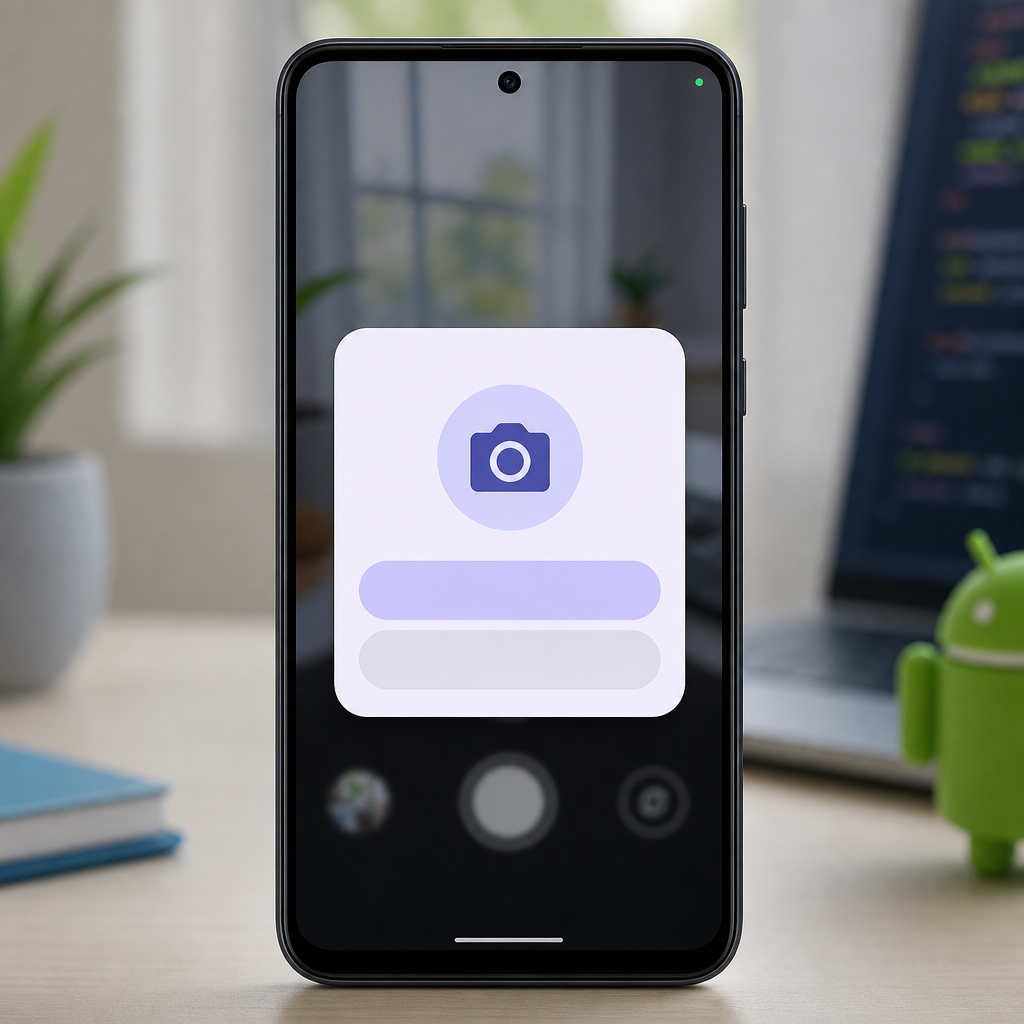
Android permissions come in two main types:
- Normal permissions: Low-risk. Granted automatically at install time. Example: SET_ALARM, INTERNET.
- Dangerous permissions: Higher-risk access to user data or device features. Must be granted by the user at runtime. Example: CAMERA, READ_CONTACTS, location, microphone, and—on newer Android—granular media and notifications.
Declaring a dangerous permission in AndroidManifest.xml isn’t enough; you must also check it at runtime and, if not granted, request it with a system dialog. For an android runtime permissions tutorial to be future-proof, use the Activity Result APIs (instead of the old requestPermissions() callback) and ask only when the user triggers an action that needs it.
Docs: Permissions overview – developer.android.com/guide/topics/permissions/overview
When should you request a permission?
Follow these best practices:
- Only request at the moment of need (e.g., when a user taps “Take Photo”). This boosts acceptance and trust.
- Explain why you need it if the user already denied once. Use
shouldShowRequestPermissionRationaleto show a rationale UI. - Don’t loop prompts. If the user denies with “Don’t ask again,” guide them to App Settings instead of re-requesting in a loop.
- Prefer safer alternatives when possible: Use the system Photo Picker instead of READ access to storage. It requires no storage permission and gives users control. It’s built-in on Android 13+ and available on many Android 11–12 devices via Google Play system updates. Fallback to the Storage Access Framework on older devices.
- Handle new permission types correctly: notifications (Android 13+), granular media permissions (Android 13+), selected-photos access (Android 14), and nearby devices (Bluetooth/Wi‑Fi) changes.
Practical checklist: how to request runtime permissions in Android (beginner-friendly)
- Add only the permissions you truly need to AndroidManifest.xml.
- Trigger the request from a user action (e.g., “Take Photo”, “Start Recording”).
- Check current status first with
ContextCompat.checkSelfPermission. - If previously denied, show a short rationale explaining value and privacy.
- Use Activity Result APIs to request; do not use deprecated
requestPermissions(). - If “Don’t ask again” is selected, show a Settings shortcut and keep limited features usable.
- Prefer Photo Picker over broad storage access on Android 13+; SAF on older devices.
- Respect version changes: notifications (13+), granular media (13+), selected-photos (14), nearby devices (12+/13+).
- Test on API 23–34 devices/emulators to verify flows, especially deny and partial-access paths.
Add required permissions in the Manifest
Declare only what you truly need. Some examples:
Note: Do not request location just to scan Bluetooth or Wi‑Fi on Android 12+/13+ if your use case doesn’t derive location. Use the nearby-device permissions instead.
Quick reference: common runtime permissions and safer alternatives
| Permission(s) | Purpose | Ask when… | Android 12–14 notes | Safer alternative |
|---|---|---|---|---|
CAMERA |
Capture photos/videos | User taps “Take Photo/Scan” | One-time option available; handle “Don’t ask again” | None |
RECORD_AUDIO |
Voice input/recording | Start of recording/voice feature | One-time option possible | None |
ACCESS_COARSE/FINE_LOCATION |
Map, nearby content, navigation | When showing location features | Prefer coarse if precise not needed | Allow address search/manual input |
ACCESS_BACKGROUND_LOCATION |
Geofencing/tracking in background | Only after foreground granted; via Settings | Staged request flow required | Use foreground-only if acceptable |
READ_MEDIA_IMAGES, READ_MEDIA_VIDEO, READ_MEDIA_AUDIO (13+)Pre-13:
READ_EXTERNAL_STORAGE |
Browse user media | When opening gallery browser | Android 14 may grant selected-photos only | Use system Photo Picker |
READ_MEDIA_VISUAL_USER_SELECTED (14+) |
Detect selected-photos access | Post-grant checks/routing | Indicates partial access | Offer re-selection or Settings |
POST_NOTIFICATIONS (13+) |
Show notifications | Right before first meaningful notification | Don’t request at first launch | In-app toasts/badges if denied |
BLUETOOTH_SCAN, BLUETOOTH_CONNECT, BLUETOOTH_ADVERTISE (12+) |
BLE scan/connect | When starting scan/pairing | Don’t request location unless required | Use QR pairing/user-initiated flows |
NEARBY_WIFI_DEVICES (13+) |
Manage nearby Wi‑Fi devices | When connecting to device network | No location needed in many cases | Use system Wi‑Fi picker intents |
Step-by-step: Request a single permission in Kotlin (Jetpack Compose)
This example shows how to check and request camera permission in Android using the modern Activity Result API from a Compose UI. The flow:
- User taps a button to take a photo.
- We check
CAMERA. - If not granted, we show rationale (when appropriate) and then ask.
- Handle granted/denied results, including “Don’t ask again.”
This is a clean android permission request example with Compose. The key is tying the request to a real user action to improve acceptance.
Handle “Don’t ask again” (never ask again)
When a permission result is denied and shouldShowRequestPermissionRationale() returns false, the user likely selected “Don’t ask again.” Present a friendly message and direct them to Settings. You can detect this case both in the result callback and on subsequent checks. Avoid repeatedly calling the system dialog—Android will ignore it and the UX suffers.
Request multiple permissions (Android 13+ media and notifications)
On Android 13+, storage access is split into granular permissions. For example, to browse images and videos (without audio), use READ_MEDIA_IMAGES and READ_MEDIA_VIDEO. Android 13+ also adds the POST_NOTIFICATIONS runtime permission. Here’s a request permission Android Kotlin example that requests multiple permissions at once, with version checks and a recommendation to use the Photo Picker where possible.
Tip: For most photo/video selection use cases, use the system Photo Picker, which does not require storage permissions and respects user privacy. It’s available on Android 13+ and on many Android 11–12 devices via Google Play system updates. For older devices, use ACTION_OPEN_DOCUMENT from the Storage Access Framework.
Java example (classic Views) using Activity Result APIs
If you’re following a request permission Android Java flow in an Activity with XML layouts, use registerForActivityResult too:
Special cases and changes in Android 12–14
Android 13+ granular media permissions
- Use READ_MEDIA_IMAGES, READ_MEDIA_VIDEO, READ_MEDIA_AUDIO instead of READ_EXTERNAL_STORAGE on Android 13+.
- Prefer Photo Picker for selecting user media; it needs no storage permission.
Android 14 selected-photos access
From Android 14, users can grant partial access (“Selected photos and videos”). Your app should:
- Detect selected-photos access by checking
READ_MEDIA_VISUAL_USER_SELECTED. - Gracefully handle limited access and, if needed, offer a re-selection flow or direct users to App Settings to change access.
Notifications (Android 13+)
Posting notifications now requires the POST_NOTIFICATIONS runtime permission on Android 13+. Ask only when you’re about to show the first meaningful notification, not on first launch. Use the same Activity Result pattern:
Nearby devices: Wi‑Fi and Bluetooth
- Bluetooth (Android 12+): Request
BLUETOOTH_SCAN,BLUETOOTH_CONNECT, and/orBLUETOOTH_ADVERTISEas needed. Declare location only if your use can derive location or for backward compatibility. - Wi‑Fi (Android 13+): Use
NEARBY_WIFI_DEVICESfor managing Wi‑Fi connections without location in many cases.
Background location
Background location has a staged request: first ask for foreground (FINE or COARSE). Only then can you direct the user to Settings to allow background access. Don’t pop a background location prompt at first launch.
One-time permissions and auto‑reset
- Users can grant one-time access in dialogs for some permissions (e.g., location, mic, camera).
- Android auto-resets permissions for unused apps. Be ready to re-check and request again when the user returns after a long time.
Handling denied results and rationale: recommended flow
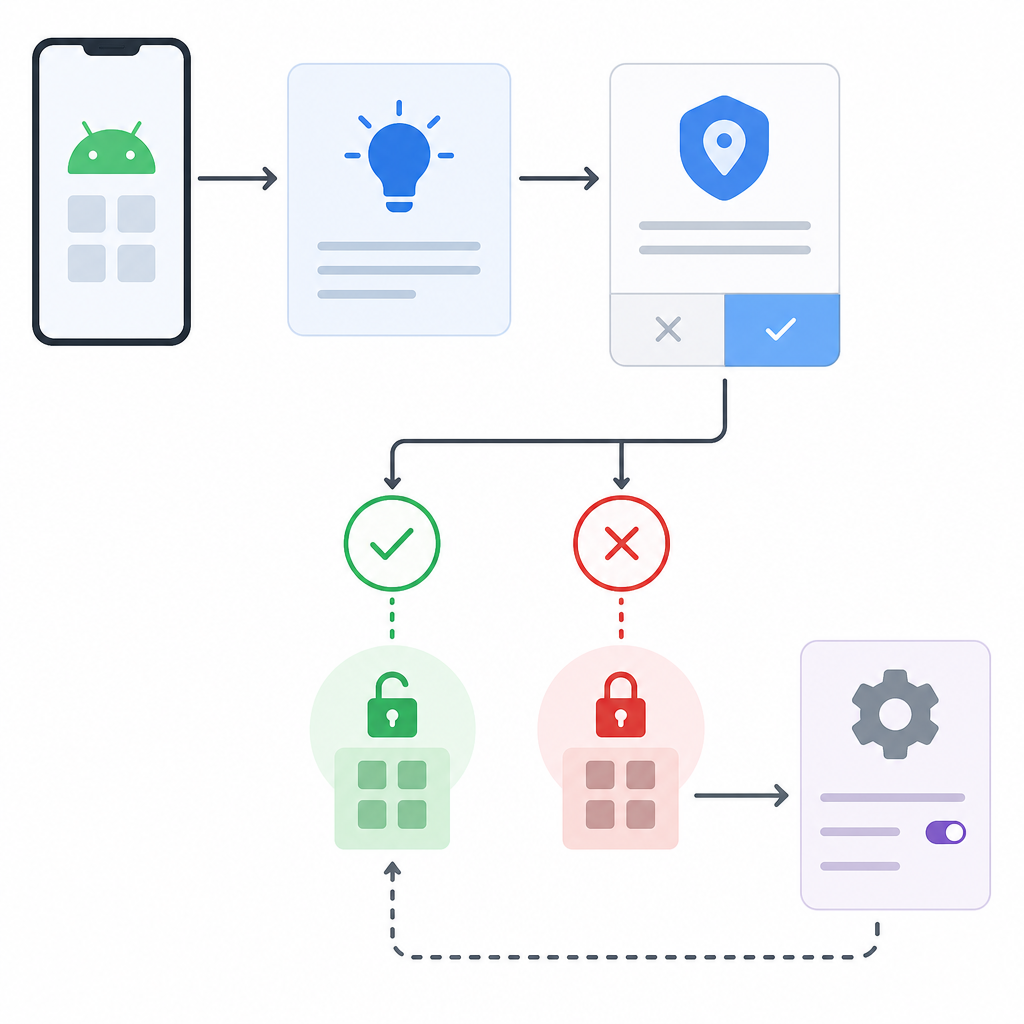
- Check if permission is already granted.
- If not, evaluate
shouldShowRequestPermissionRationale. - Show rationale if true (the user denied once) explaining the value and privacy considerations.
- Request using Activity Result APIs.
- On denial:
- If
shouldShow...is true: keep the app usable; maybe offer another rationale later. - If false: treat as “Don’t ask again.” Show a small UI to open App Settings.
- If
- Never hard-block the entire app if the permission isn’t critical. Offer limited functionality.
Visual flow: requesting runtime permissions the right way
checkSelfPermissionshouldShowRequestPermissionRationale
Difference between manifest permissions and runtime permissions
Declaring permissions in the manifest is mandatory for any protected permission. However, dangerous permissions require a second step at runtime: checking and requesting through the system dialog. Normal permissions are granted at install time and don’t need a runtime request.
Full Kotlin snippet: camera + media + notifications with adaptive checks
Output / Result
After implementing the above:
- Tapping “Take Photo” will either open the camera (if granted) or show the system’s Android permission dialog explained (if not granted). If denied with “Don’t ask again,” the app shows a friendly message with a Settings shortcut.
- Tapping “Browse Media and Notify” on Android 13+ requests only the relevant granular permissions. If you adopt the Photo Picker, it opens the picker without any storage permission prompts.
- On Android 13+, the first time you try to post a notification, the system asks for notification permission, and your app proceeds only on grant.
Common mistakes to avoid
- Requesting permissions on app startup before users perform a relevant action.
- Relying on manifest-only declarations for dangerous permissions.
- Using
READ_EXTERNAL_STORAGEon Android 13+ without migrating to granular media permissions. - Forcing location permission for Bluetooth/Wi‑Fi on newer Android when nearby-device permissions suffice.
- Looping permission prompts after denial; handle “Don’t ask again” via Settings.
FAQ: People also ask
What are runtime permissions in Android?
They are higher-risk (“dangerous”) permissions that users grant while the app is running, via a system dialog. Examples include camera, microphone, contacts, location, notifications (Android 13+), and granular media permissions (Android 13+).
When should I request a permission in an Android app?
Right before you need it, tied to a user action. For example, ask for camera permission when the user taps “Take Photo.” Provide a rationale if they previously denied.
How do I check if a permission is already granted in Android?
Use ContextCompat.checkSelfPermission(context, PERMISSION) == PackageManager.PERMISSION_GRANTED before performing the action. If granted, proceed without showing a dialog.
How do I handle the permission denied case in Android?
If denied and shouldShowRequestPermissionRationale returns true, explain why you need it and let the user try again. If it returns false, treat it as “Don’t ask again” and guide the user to App Settings.
What’s the difference between normal and dangerous permissions in Android?
Normal permissions are automatically granted at install time; dangerous permissions require explicit runtime consent via a system dialog.
Summary
Now you know how to request runtime permissions in Android the right way using modern APIs. Use Activity Result contracts for clean callbacks, show rationale when appropriate, and never block the app on non-critical permissions. Embrace newer platform behaviors—granular media permissions, selected-photos access, and the notifications permission—and where possible, use the system Photo Picker to avoid broad storage permissions. Whether you’re coding in Kotlin or following a request permission Android Java approach, a thoughtful permission UX will make your app more trustworthy and user-friendly.
Sources / Further reading
- Permissions on Android (overview): https://developer.android.com/guide/topics/permissions/overview
- Request runtime permissions (Activity Result APIs): https://developer.android.com/training/permissions/requesting?hl=en
- ActivityResultContracts.RequestPermission: https://developer.android.com/reference/androidx/activity/result/contract/ActivityResultContracts.RequestPermission
- Jetpack Compose libraries: https://developer.android.com/develop/ui/compose/libraries?hl=en
- Notification permission (POST_NOTIFICATIONS): https://developer.android.google.cn/develop/ui/compose/notifications/notification-permission?hl=en
- Android 13 behavior changes (granular media): https://developer.android.com/about/versions/13/behavior-changes-13
- Android 14 partial access to photos/videos: https://developer.android.com/about/versions/14/changes/partial-photo-video-access
- Manifest.permission reference: https://developer.android.google.cn/reference/android/Manifest.permission