How to Handle Loading and Error States in Android Apps
When you build your first Android app, one of the earliest UX challenges you’ll face is how to handle loading and error states in Android. Users need clear feedback while data is loading, and friendly, actionable messages when something goes wrong (like no internet, timeouts, or server errors). In this beginner-friendly guide, you’ll learn practical, modern patterns using Kotlin, ViewModel, StateFlow, and Jetpack Compose, plus a simple Java/XML example for classic views. By the end, you’ll know how to show progress bars, display helpful error messages, and manage loading, empty, and error states cleanly in your app.
What is a loading state in an Android app?
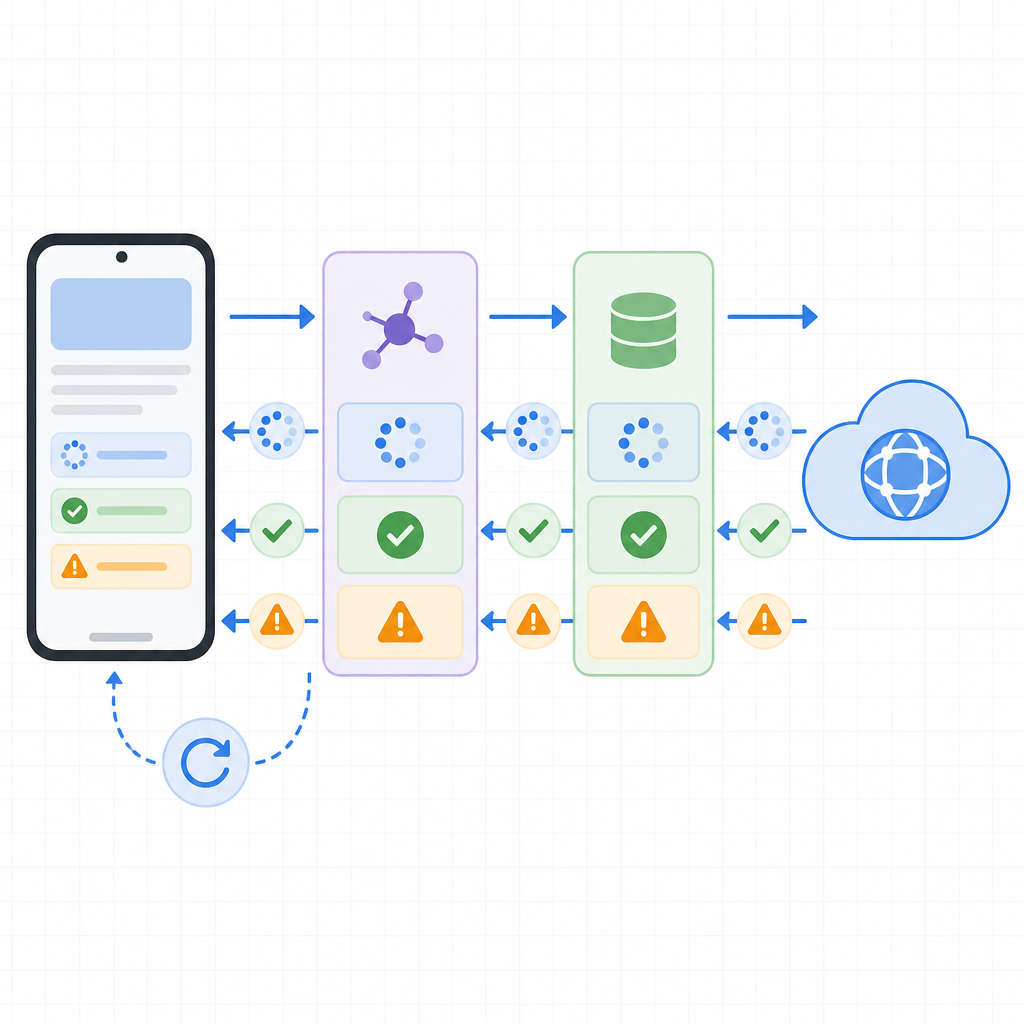
Comparison of loading, success, and error UI states in an Android screen
A loading state is the temporary UI you display while your app is fetching data from a network or database. Typical indicators are a CircularProgressIndicator or LinearProgressIndicator in Material 3. You’ll also manage an “empty” state (when data loads but returns nothing) and an “error” state (when a request fails). The goal is to keep users informed without blocking them unnecessarily, and to provide a clear way to retry or recover.
Core principles for handling loading and error states
State flow from UI through ViewModel and Repository to network and back
Model UI state explicitly: Represent loading, success, empty, and error as immutable state in your ViewModel and expose it to the UI.
Prefer in-place indicators: Show progress where the result will appear. Avoid blocking dialogs for normal operations.
Use Snackbars for transient issues: Offer an inline retry action where possible.
Map technical failures to friendly messages: Users don’t understand “SocketTimeoutException.” Say “Request timed out. Check your connection and try again.”
Be lifecycle-aware: Collect flows with collectAsStateWithLifecycle in Compose, or observe LiveData safely in views.
Design for offline and empty states: Cache data, show an offline banner, and let the user retry.
Modern architecture for beginners: ViewModel + StateFlow + Compose
The cleanest beginner setup is:
ViewModel holds the source of truth for UI state as a StateFlow.
The UI (Jetpack Compose) collects this state and renders the appropriate screen.
Use coroutines to run network operations in viewModelScope, mapping errors to user-friendly text.
This approach follows unidirectional data flow and Android’s recommended UI architecture.
How to show and hide progress bar during API call in Android (Compose and Views)
Compose example above toggles the indicator via PostsUiState.Loading. For classic views, you can control a ProgressBar’s visibility from your Activity/Fragment:
With Flow, prefer catch and retryWhen for retries:
Kotlin
Code
class="cd-package">import kotlinx.coroutines.flow.flow
class="cd-package">import kotlinx.coroutines.flow.catchclass="cd-package">import kotlinx.coroutines.flow.onStart
class="cd-package">import kotlinx.coroutines.flow.retryWhen
class="cd-package">import java.io.IOException
val postsFlow = flow {
emit(api.getPosts())
}
.onStart { emit(emptyList()) } // optional
.retryWhen { cause, attempt ->
// Retry transient errors a couple of times
cause is IOException && attempt < 2
}
.catch { cause ->
// Map to UI state at collect site, or emit a special wrapperthrow cause // Or emit a sealed data wrapper
}
Simple example of try/catch for a network request in Java Android (classic views)
If you are learning Java, here’s a minimal example using Retrofit callbacks to display and hide a ProgressBar and display an error message in Android app:
Java
Code
class="cd-keyword cd-access">public interface ApiService {
    class="cd-annotation">@GET("posts")
    Call<List<Post>> getPosts();
}

class="cd-keyword cd-access">public class Post {
    class="cd-keyword cd-access">public int id;
    class="cd-keyword cd-access">public String title;
}
This demonstrates basic Java exception handling in Android without blocking the UI.
Best way to display an error message to users in Android
Transient or recoverable: Use a Snackbar with a Retry action.
Inline for form fields: Show helper/error text near inputs.
Blocking/critical: Use a dialog only when the user must decide (e.g., destructive actions).
Offline: Show a non-blocking “You’re offline” banner and allow manual retry.
This strikes the right balance between visibility and non-intrusiveness.
Situation
Recommended UI
Why
Avoid
Initial screen load fails
Full‑screen error with “Retry” + Snackbar
High visibility and a clear recovery path
Multiple Toasts or silent failures
Append (pagination) fails
List footer error row + “Retry”
Keeps context; user stays in the list
Full‑screen overlays
Form validation error
Inline field error text
Immediate, specific guidance
Global Snackbars without context
Offline / no internet
Non‑blocking offline banner + Retry
Keeps cached content visible
Blocking dialogs for every request
Critical/irreversible action
Modal dialog with confirm/cancel
Requires explicit user decision
Silent failures or Snackbars alone
Lists and pagination: handle API errors in Android with Paging 3
For paginated lists, Paging 3 exposes LoadState for refresh, prepend, and append. In Compose, you can render full-screen loading/error for the refresh state and show item-level footers for append:
Kotlin
Code
class="cd-package">import androidx.paging.compose.collectAsLazyPagingItems
class="cd-package">import androidx.paging.LoadState

class="cd-annotation">@Composable
fun PagedPostsScreen(viewModel: PagedPostsViewModel) {
    val items = viewModel.posts.collectAsLazyPagingItems()

    when(val refresh = items.loadState.refresh) {
        is LoadState.Loading -> Box(Modifier.fillMaxSize()) {
            CircularProgressIndicator(Modifier.align(Alignment.Center))
        }
        is LoadState.Error -> Box(Modifier.fillMaxSize()) {
            Column(Modifier.align(Alignment.Center), horizontalAlignment = Alignment.CenterHorizontally) {
                Text("Failed to load posts. ${refresh.error.message ?: ""}")
                Spacer(Modifier.height(12.dp))
                Button(onClick = { items.retry() }) { Text("Retry") }
            }
        }
        is LoadState.NotLoading -> {
            LazyColumn {
                items(items.itemCount) { index ->
                    val post = items[index]
                    if (post != null) {
                        Text(post.title, Modifier.padding(16.dp))
                    }
                }
                when(val append = items.loadState.append) {
                    is LoadState.Loading -> item { LinearProgressIndicator(Modifier.fillMaxWidth()) }
                    is LoadState.Error -> item {
                        Row(Modifier.fillMaxWidth().padding(16.dp), horizontalArrangement = Arrangement.SpaceBetween) {
                            Text("Couldn’t load more.")
                            TextButton(onClick = { items.retry() }) { Text("Retry") }
                        }
                    }
                    else -> Unit
                }
            }
        }
    }
}
With RecyclerView, use LoadStateAdapter to show headers/footers for loading and errors with a retry button.
Beginner guide to handling errors with Kotlin coroutines
Perform network work in viewModelScope on a background dispatcher.
Map categories: no internet (IOException), timeout, HTTP error (HttpException), unknown.
Use retryWhen for brief automatic retries on transient failures; avoid infinite loops.
Cancel work on lifecycle end by scoping to the ViewModel; Compose collectors should use collectAsStateWithLifecycle.
How do I manage loading, empty, and error states with ViewModel and LiveData?
While Flow/StateFlow is great for new code, LiveData remains supported. You can expose the same sealed UI state as LiveData<PostsUiState> and observe it in your Activity/Fragment. The rendering logic is identical: switch on Loading/Empty/Success/Error and update views.
Best way to show a no internet connection error in Android
Detect IOException or use connectivity APIs to infer offline status.
Show an inline message like “You’re offline.” Keep content visible if cached.
Offer “Retry” or “Try again when online.” Consider a non-blocking banner.
For mission-critical actions, allow a manual retry and optionally queue work for later with WorkManager.
Offline-first tips
Cache data in Room and show cached content while refreshing.
Surface an offline banner when write operations can’t complete.
Use WorkManager to schedule sync/retry when connectivity returns.
Make it clear when content is stale and allow manual refresh.
How do I show a progress bar while fetching data in Android?
In Compose, render a CircularProgressIndicator when your UI state is Loading. In classic views, toggle ProgressBar visibility before and after the network call. Use a determinateLinearProgressIndicator when you can measure progress (like file uploads), and an indeterminate indicator when you can’t (most API calls).
Launch checklist: Loading and error states
✓ Use a sealed UI state: Loading, Success(data), Empty, Error(message)
✓ Run network work in viewModelScope; expose StateFlow or LiveData
✓ Map exceptions to friendly messages (IOException, timeouts, HttpException, unknown)
✓ Show in-place indicators; reserve dialogs for critical decisions
✓ Provide a visible Retry action for Error and Empty (when appropriate)
✓ Keep cached data visible; add an offline banner for no connectivity
✓ For lists, wire Paging 3 LoadState with retry in headers/footers
✓ Collect with lifecycle awareness (collectAsStateWithLifecycle)
✓ Log errors with context, but never show raw stack traces to users
Output / Result
After following this guide, your app will:
Show a smooth loading indicator during API calls without blocking the screen unnecessarily.
Display clear, user-friendly error messages with a visible Retry action.
Handle empty results gracefully with guidance for the user.
Support pagination with proper load-state handling for refresh and append.
Remain responsive and lifecycle-safe using ViewModel, StateFlow, and Compose.
FAQ
What is a loading state in an Android app?
It’s the temporary UI you show while data is being fetched. Use in-place indicators (Circular/Linear progress) and keep the UI responsive.
How do I show a progress bar while fetching data in Android?
Compose: render a CircularProgressIndicator when state is Loading. Classic views: show a ProgressBar before the request, hide it in success/failure callbacks.
How can beginners handle API errors in Kotlin or Java?
Kotlin: use try/catch around suspend calls and map exceptions to friendly messages. Java: use Retrofit’s enqueue callbacks, show/hide a ProgressBar, and show a Snackbar/Toast or inline error text on failure.
What is the best way to display an error message to users in Android?
Use Snackbars for transient issues with an optional Retry action. Use inline text for form errors. Reserve dialogs for critical or blocking situations.
How do I manage loading, empty, and error states with ViewModel and LiveData?
Expose a sealed UI state via LiveData from your ViewModel. Observe it in your Activity/Fragment and update the UI based on the current state (Loading/Empty/Success/Error). The pattern mirrors the Flow/Compose approach.
With these patterns and examples, you now have a reliable, modern way to handle API errors in Android and to show progress clearly. Whether you prefer Compose with Kotlin or classic views with Java, start modeling your UI state explicitly and your users will instantly feel the difference.