
Want a reliable way to run background tasks that survive app restarts and device reboots? This Android WorkManager tutorial for beginners walks you through exactly how to use WorkManager in Android with modern Kotlin + Jetpack Compose, plus a small Java example. You’ll learn when to use it, how to set it up, build OneTime and Periodic requests, chain tasks, add constraints (Wi‑Fi, charging), observe progress/results, and avoid common mistakes. By the end, you’ll be comfortable scheduling background tasks in Android with WorkManager, step by step.
What is WorkManager in Android?
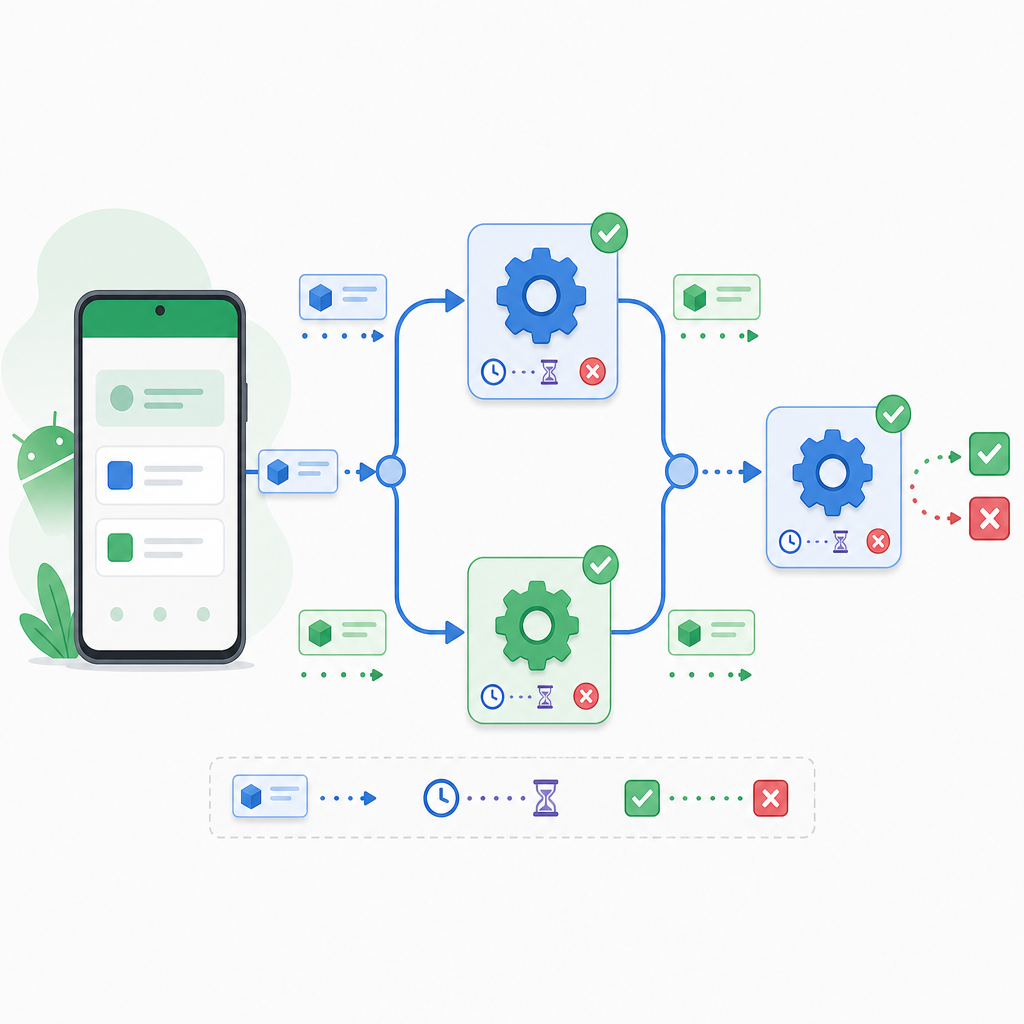
WorkManager is a Jetpack library for deferrable, persistent background work. “Persistent” means the system will reschedule your work even if the app process is killed or the device restarts. It’s the recommended way for most background operations that don’t need exact timing and can run under constraints like “only on Wi‑Fi” or “only when charging.”
- Guarantees execution under the constraints you specify
- Survives process death and device reboot
- Each worker has a hard execution window of about 10 minutes
- Kotlin-first APIs with
CoroutineWorker, progress reporting, and foreground support if needed
As of July 15, 2026, the latest stable WorkManager is androidx.work 2.11.2 (requires compileSdk 33+). See the official release notes for details.
When should I use WorkManager vs. other options?
- Use WorkManager for deferrable, guaranteed background processing (sync, upload, cleanup, backups) that should run even if the app or device restarts.
- Use platform‑specific APIs when they fit better:
- DownloadManager for large or user‑visible downloads
- FCM for push messages (and trigger WorkManager from the message if work is needed)
- Use a Foreground Service only for long, user‑visible tasks (ongoing location, media playback). Android 14+ tightened foreground‑service rules, so many background cases should migrate to WorkManager or user‑initiated data transfer APIs.
- Not for exact timing: WorkManager is not a precise scheduler; the system chooses the best time to run.
WorkManager vs other Android background options (quick comparison)
| Criteria | WorkManager | Foreground Service | AlarmManager (exact) | JobScheduler |
|---|---|---|---|---|
| Best for | Deferrable, guaranteed background tasks with constraints | Long, user‑visible operations (must show notification) | Precise alarms/one‑off triggers at exact times | Lower‑level scheduled work (API 21+), fewer conveniences |
| Timing | Not exact; system optimizes execution | Immediate while service is running | Exact (if allowed), or inexact otherwise | Not exact; system scheduled |
| Persists across reboot | Yes (rescheduled automatically) | No (you must restart it explicitly) | Yes, if you re‑set alarms after boot | Yes (persisted jobs) |
| User notification required | Only for foreground work in a Worker | Yes, mandatory while running | No | No |
| Minimum repeat interval | 15 minutes (PeriodicWork) | N/A (continuous while active) | N/A (one‑off alarms) | Typically 15 minutes for periodic |
| Chaining / unique work | Yes (one‑time chains, unique names, tags) | No | No | No (you implement orchestration yourself) |
| Beginner‑friendly | Yes (Kotlin‑first, higher‑level) | Moderate (strict platform rules) | Low for background workflows | Lower‑level API |
Project setup (2026‑ready)
Add the latest dependencies and use compileSdk 33 or higher.
That’s it—WorkManager auto‑initializes in most apps. If you use DI (like Hilt), you can plug in a custom WorkerFactory.
How to use WorkManager in Android (step by step, Kotlin + Compose)
1) Create a Worker
Use CoroutineWorker for Kotlin coroutines. The doWork() method runs off the main thread.
Important: Don’t pass large objects (Bitmaps, files) in Data. Use files, Room, or your own storage and return small keys/IDs.
2) Add constraints (Wi‑Fi, charging, etc.)
Constraints make your work smarter and battery‑friendly.
3) Enqueue a OneTimeWorkRequest
Use OneTimeWorkRequest for a single job.
4) Observe status, progress, and result in Jetpack Compose
WorkManager provides LiveData and Flow to observe WorkInfo. In Compose, Flow works great.
You can hold workId in a ViewModel state after enqueueing to continue observing across recompositions.
5) Run now with expedited work (user‑initiated)
If a user taps “Sync now,” consider expedited work. It runs with higher priority but is quota‑based and may fall back to regular work according to your policy.
Note: Expedited work is not unlimited. On older Android versions, WorkManager may use a foreground service under the hood. On Android 12+, it uses OS expedited jobs with quotas.
6) Chaining tasks (OneTime only)
Chain one‑time requests to build flows like: download → process → upload. Periodic work cannot be part of a chain.
7) Periodic work (15‑minute minimum)
Use PeriodicWorkRequest for repeating jobs like daily cleanup. The repeat interval minimum is 15 minutes. There’s no initial delay; you can optionally set a flex window.
Remember: Periodic work cannot be chained and will not run more frequently than every 15 minutes.
8) Foreground work for long, user‑visible operations
If your task is long and must show a notification (e.g., user‑visible file processing), use the foreground APIs inside the Worker.
Choose an appropriate foreground service type in your manifest when required by platform rules.
WorkManager Java example (classic view button + Worker)
If you’re starting from Java/XML, here’s a minimal example.
How to chain tasks and set constraints in WorkManager
Quick checklist for robust pipelines:
- Create each step as a
CoroutineWorkerand keep it idempotent (safe to retry). - Use
Dataonly for small keys/values and pass file URIs or DB IDs for large data. - Apply
Constraintsto eachOneTimeWorkRequestas needed (network, charging). - Use
beginUniqueWork+ExistingWorkPolicy(KEEP, REPLACE, APPEND) to prevent duplicates. - Observe progress/output from the last step’s
WorkInfo.
WorkManager vs JobScheduler for beginners
- WorkManager is a higher-level API that internally uses JobScheduler (and AlarmManager/ForegroundService on older devices) to give you a consistent, Kotlin‑friendly interface with chaining, constraints, unique work, and guaranteed execution semantics.
- JobScheduler is lower-level and limited to API 21+. You’d often re‑implement features WorkManager already provides.
Common WorkManager errors and how to fix them
- Problem: “My task didn’t run exactly at the time I set.”
Fix: WorkManager is not an exact scheduler. If you need precision, use AlarmManager+exact alarms (if allowed) or a foreground service for continuous, user‑visible work. - Problem: “Periodic work every 5 minutes doesn’t start.”
Fix: Minimum is 15 minutes forPeriodicWorkRequest. Choose ≥ 15 minutes. - Problem: “Chaining periodic with one‑time work fails.”
Fix: Periodic work cannot be in a chain. ChainOneTimeWorkRequestonly. - Problem: “Crash or failure when passing large data to Worker.”
Fix:Datais limited to about 10 KB serialized. Store large payloads in files/DB and pass URIs/IDs. - Problem: “Expedited jobs don’t always run immediately.”
Fix: Expedited execution is quota‑based. UsesetExpedited(OutOfQuotaPolicy.RUN_AS_NON_EXPEDITED_WORK_REQUEST)to gracefully fall back. - Problem: “My work stops when the app is swiped away.”
Fix: WorkManager persists work; ensure you aren’t tying cancellation to a lifecycle. Use unique work and let the system reschedule after process death. - Problem: “Network tasks fail on metered data.”
Fix: Add properConstraints(e.g.,UNMETEREDfor Wi‑Fi) and handle retries with backoff.
- Use CoroutineWorker for Kotlin and keep the work idempotent.
- Pass only small inputs/outputs via Data; store big payloads in files/DB and pass URIs/IDs.
- Add Constraints (network, charging, storage) to save battery and improve success rates.
- Enqueue with enqueueUniqueWork/enqueueUniquePeriodicWork to avoid duplicates.
- Tag requests with addTag() to group and cancel related work easily.
- Report progress with
setProgressand observe WorkInfo in your UI. - Long, user‑visible work: call setForeground() and show a notification.
- Handle failures with Result.retry() and optional backoff policy when building requests.
- Test with work-testing and verify behavior under Doze/Battery Saver and app restarts.
Output / Result (what you’ll see)
After enqueueing the sample SyncWorker:
- The UI displays states like ENQUEUED → RUNNING → SUCCEEDED/FAILED/RETRY.
- Progress increases 0 → 100% via
WorkInfo.progress. - On success,
WorkInfo.outputDatareturnsitemsSynced = 42, which you can show in Compose. - If you chose expedited work and you’re within quota, it should begin sooner than regular work; otherwise it may run as non‑expedited.
Quick Kotlin snippets to copy
One-time work with Wi‑Fi + charging
Observe WorkInfo as Flow in Compose
Unique periodic work (daily)
FAQ: People also ask
What is WorkManager in Android and when should I use it?
WorkManager is a Jetpack library for reliable, deferrable background tasks that should persist across app restarts and device reboots. Use it for syncing, scheduled uploads, cleanup, and similar tasks that don’t need exact timing but should be guaranteed under constraints.
How do I set up WorkManager in a new Android project?
Add implementation "androidx.work:work-runtime-ktx:2.11.2" (Kotlin) or work-runtime (Java), use compileSdk 33+, and start creating CoroutineWorker or Worker classes. No special initialization is needed in most apps.
What is the difference between OneTimeWorkRequest and PeriodicWorkRequest?
- OneTimeWorkRequest: Runs once; can be chained with others; supports expedited mode.
- PeriodicWorkRequest: Repeats on an interval (≥ 15 minutes); cannot be part of a chain; no initial delay (you can set a flex window).
How do I run WorkManager only on Wi‑Fi or when charging?
Add Constraints to your request:
How can I observe WorkManager status and get the result?
Use getWorkInfoByIdFlow() (KTX) or getWorkInfoByIdLiveData() to observe WorkInfo. Read state, progress, and outputData from WorkInfo to update your UI.
Troubleshooting tips for beginners
- Ensure your Worker does not do UI work. It runs off the main thread by default with
CoroutineWorker. - Keep work idempotent. If the system retries, it shouldn’t create duplicate results.
- Use
enqueueUniqueWork/enqueueUniquePeriodicWorkwith a stable name to avoid duplicates. - Use tags (
addTag()) to group and cancel related work. - For DI with Hilt, annotate with
@HiltWorkerand inject viaHiltWorkerFactory.
Summary: How to schedule background tasks with WorkManager step by step
- Add the WorkManager dependency (2.11.2+), compileSdk 33 or higher.
- Create a
CoroutineWorkerthat does small, idempotent work within ~10 minutes. - Build a
OneTimeWorkRequest(orPeriodicWorkRequestfor repeating jobs), addConstraintsif needed. - Enqueue unique work to prevent duplicates; optionally mark as expedited for user actions.
- Observe
WorkInfovia Flow/LiveData to show state, progress, and output. - Chain one‑time requests for multi‑step flows; use periodic for repeating maintenance.
- Handle large data via files/DB, not
Data; use foreground APIs for long, user‑visible tasks.
Sources / Further reading
- WorkManager release notes (latest versions, dependencies): developer.android.com/jetpack/androidx/releases/work
- Getting started: define work (OneTime/Periodic, expedited): developer.android.com/…/define-work
- Chaining work: developer.android.com/…/chain-work
- Manage and observe WorkInfo (LiveData/Flow): developer.android.com/…/manage-work
- PeriodicWorkRequest API: developer.android.com/reference/androidx/work/PeriodicWorkRequest
- WorkRequest.Builder.setExpedited(OutOfQuotaPolicy): developer.android.com/reference/androidx/work/WorkRequest.Builder
- CoroutineWorker reference: developer.android.com/reference/kotlin/androidx/work/CoroutineWorker
Keywords covered
Focus keyphrase: How to use WorkManager in Android
Secondary keywords: Android WorkManager tutorial for beginners, what is WorkManager in Android, WorkManager Kotlin example, WorkManager Java example, background tasks in Android with WorkManager
Long‑tail keywords: how to schedule background tasks with WorkManager step by step; WorkManager one time and periodic work examples Kotlin; how to chain tasks and set constraints in WorkManager; WorkManager vs JobScheduler for beginners; common WorkManager errors and how to fix them