
If you are just starting out with Python and want to save data to files, read texts, or keep logs, this beginner-friendly guide is for you. In this Python file handling tutorial for beginners, we will walk through Python file handling read write and append examples using simple, practical snippets. You will learn how to read a file in Python, how to write to a file in Python, how to append to a file in Python, and when to use the Python open file modes r w a (and more). By the end, you’ll be comfortable opening and closing files safely, handling common errors, and practicing with small exercises. For more Python basics, see our Python tutorials at CodDesire.
Key takeaways: Python file handling — read, write, append
- Use with open(…) for safe, automatic closing — fewer bugs and no leaked file handles.
- Read (r): open existing text safely without changing it; pair with read(), readline(), or iteration.
- Write (w): create or overwrite from the start; to avoid accidental loss, consider x (exclusive create) first.
- Append (a): add to the end for logs/journals; a+ lets you read and append in one handle.
- Prefer encoding=”utf-8″ for text; for CSV, open with newline=”” and use the csv module.
- Paths: use pathlib.Path for clean folder creation (mkdir) and text helpers (read_text/write_text).
Why file handling matters

Programs don’t always run inside an IDE forever. You often need to keep results, store logs, or load configuration. File handling lets your Python programs:
- Remember information between runs (saving data to disk)
- Import text or numbers from existing files
- Write logs for debugging and auditing
- Work with assets such as CSVs, images, and binary files
open() and file modes: r, w, a, x, +, b
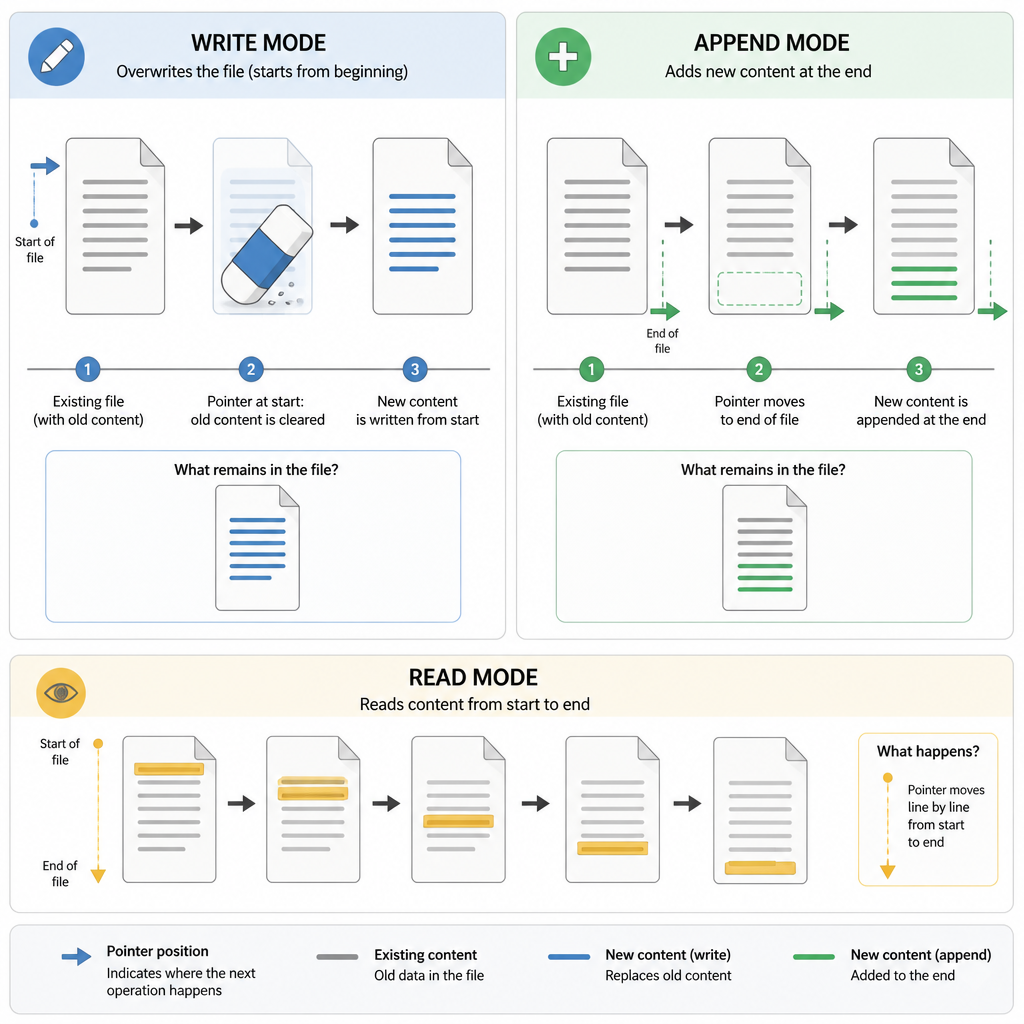
The built-in open() function is the entry point for reading and writing files. Its most important argument is the mode, which decides what you want to do: read, write, append, or create exclusively. Here is a quick comparison of common modes.
| Mode | Meaning | Creates file? | Truncates existing? | Pointer position | Typical use |
|---|---|---|---|---|---|
| r | Read text | No | No | Start | Open an existing file to read |
| w | Write text | Yes | Yes | Start | Create/overwrite a file |
| a | Append text | Yes | No | End | Add content to the end |
| x | Exclusive create | Yes | — | Start | Create a new file; fail if it exists |
| r+ | Read/write | No | No | Start | Modify without truncating |
| w+ | Read/write | Yes | Yes | Start | Reset file and then read/write |
| a+ | Append/read | Yes | No | End (for writes) | Read and append to end |
| rb / wb / ab | Binary modes | Varies | Varies | Varies | Images, PDFs, any non-text data |
Quick mode picker flow
Use
r (add b → rb for binary).Use
w (add + → w+ if you must read too).Use
a (add + → a+ to read and append).Use
x (fails if the file already exists).Use
r+ (read, then write in place).Add
b to your chosen mode: rb, wb, ab, r+b, etc. Tip: Combine flags: a+ means “append and read”; rb means “read binary”. Always use with open(...) to auto‑close.
Safe opening and auto-closing with with
Always prefer a context manager. Using with open(...) closes the file automatically, even if errors happen.
with open("filename.txt", mode="r", encoding="utf-8") as f:
data = f.read() # work with the file
# file is now closed automatically
Tip: The default text encoding depends on your OS and settings. For predictable behavior, pass encoding="utf-8".
How to read a file in Python (r)
Read the entire file at once
# Read the whole file into a string
with open("poem.txt", "r", encoding="utf-8") as f:
    text = f.read()
print(text)
Read line by line efficiently
with open("poem.txt", "r", encoding="utf-8") as f:
for i, line in enumerate(f, start=1):
print(f"{i}: {line.rstrip()}")
Read the first N characters or one line
first_20 = f.read(20) # first 20 characters
f.seek(0) # go back to start
first_line = f.readline() # read one line
print(first_20)
print(first_line)
Reading text with pathlib (clean and concise)
p = Path("notes.txt")
content = p.read_text(encoding="utf-8")
print(content)
How to write to a file in Python (w)
Use write mode to create or overwrite files. Be careful: w erases existing content.
# Write text to a new (or overwritten) file
with open("notes.txt", "w", encoding="utf-8") as f:
    f.write("First linen")
    f.writelines(["Second linen", "Third linen"])

print("Wrote 3 lines to notes.txt")
Create missing folders before writing
open() will not create parent folders. Make them first:
p = Path("output/reports/summary.txt")
p.parent.mkdir(parents=True, exist_ok=True)
with open(p, "w", encoding="utf-8") as f:
f.write("Report summaryn")
Writing CSV properly (newline control)
When writing CSVs, pass newline="" so the csv module handles newlines correctly.
rows = [
["id", "name"],
[1, "Asha"],
[2, "Dev"]
]
with open("students.csv", "w", newline="", encoding="utf-8") as f:
writer = csv.writer(f)
writer.writerows(rows)
How to append to a file in Python (a)
Append mode adds new content to the end without deleting the existing data. This is great for logs and running records.
with open("app.log", "a", encoding="utf-8") as f:
f.write(f"{datetime.now().isoformat()} - Application startedn")
Append and then read what you wrote (a+)
with open("events.log", "a+", encoding="utf-8") as f:
f.write("New event recordedn")
f.seek(0) # move to start before reading
for line in f:
print(line.rstrip())
Combined modes and binary files
Read and then write without truncation (r+)
with open("todo.txt", "r+", encoding="utf-8") as f:
old = f.read()
f.seek(0)
f.write("=== TODO LIST ===n" + old)
Copy a binary file (images, PDFs) safely
src = "photo.jpg"
dst = "photo_copy.jpg"
with open(src, "rb") as fin, open(dst, "wb") as fout:
for chunk in iter(lambda: fin.read(8192), b""):
fout.write(chunk)
print("Copied photo.jpg to photo_copy.jpg")
Relative risk of data loss by mode (qualitative)
This is a qualitative learning aid. Back up important files and prefer x or temp files when safety matters.
Safety tips: create files without overwriting and handle errors
Exclusive create with x
# Create a new file but fail if it already exists
try:
    with open("unique.txt", "x", encoding="utf-8") as f:
        f.write("Created once onlyn")
except FileExistsError:
    print("unique.txt already exists — not overwriting.")
Helpful error handling
with open("missing.txt", "r", encoding="utf-8") as f:
print(f.read())
except FileNotFoundError:
print("File not found — check the path and filename.")
except PermissionError:
print("No permission — try a different folder or run with proper rights.")
Encodings and newlines: best practices that prevent bugs
- Always specify
encoding="utf-8"for predictable text behavior across systems. - Reading text: Python handles different newline styles automatically by default.
- Controlling newlines: for CSV or when you must preserve exact line endings, pass
newline=""toopen()and let the library (likecsv) manage them. - Decoding errors: if you see
UnicodeDecodeError, the file’s encoding may not be UTF-8. Try a matching encoding (e.g.,latin-1) or confirm the source encoding.
try:
with open("legacy.txt", "r", encoding="utf-8") as f:
data = f.read()
except UnicodeDecodeError:
with open("legacy.txt", "r", encoding="latin-1") as f:
data = f.read()
print(len(data))
Step by step guide to Python file handling (beginner friendly)
- Create a practice folder and a new file by writing.
- Read the file back to verify content.
- Append new lines and confirm they appear at the end.
from datetime import datetime
# 1) Create folder and write
base = Path("practice")
base.mkdir(exist_ok=True)
target = base / "journal.txt"
with open(target, "w", encoding="utf-8") as f:
f.write("Day 1: Started learning files.n")
# 2) Read back
print("After write:")
with open(target, "r", encoding="utf-8") as f:
print(f.read())
# 3) Append entries
with open(target, "a", encoding="utf-8") as f:
f.write(f"Day 2: Continued at {datetime.now().isoformat()}n")
print("After append:")
with open(target, "r", encoding="utf-8") as f:
print(f.read())
Common errors in Python file handling and fixes
- FileNotFoundError: The path is wrong or the file does not exist. Fix: check spelling, use
Pathto build paths, or create the file first. - PermissionError: Writing to a protected folder. Fix: choose a writable directory (e.g., your user folder) or adjust permissions.
- UnicodeDecodeError: Encoding mismatch when reading. Fix: specify the correct
encoding(utf-8,latin-1, etc.). - Accidental overwrite: Using
won an important file. Fix: usexfor exclusive creation, or back up first.
Practice exercises for Python file handling
- Create a program that writes five lines of your favorite quotes to
quotes.txt, then reads and prints them with line numbers. - Write a script that appends a timestamped message to
run.logeach time it runs. Verify by reading the file after appending. - Copy a binary file (e.g., an image) to a new file using chunked reads in
rb/wbmodes. - Use
csvto write a small table (3 rows) toscores.csv, then open it and print the contents line by line. - Try to create a file with
xtwice, catchFileExistsError, and print a friendly message.
FAQ: Python file handling read, write, append examples
What is the difference between read, write, and append in Python file handling?
Read (r) opens an existing file to get its contents. Write (w) creates a new file or clears an existing one before writing. Append (a) adds new data to the end without removing existing content.
How do I open and close a file safely in Python?
Use a context manager: with open(...). It closes the file automatically after the block, even if an error occurs.
What do file modes r, w, a, and r+ mean in Python?
- r: read text (file must exist)
- w: write text (create or truncate)
- a: append text (create if missing, no truncate)
- r+: read and write without truncating (file must exist)
How can I read a text file line by line in Python?
for line in f:
print(line.rstrip())
Why am I getting FileNotFoundError and how do I fix it in Python?
The path or filename is incorrect, or the file doesn’t exist yet. Fix by checking the working directory, correcting the path, creating the file first (e.g., with w or x), or using Path(...).parent.mkdir(parents=True, exist_ok=True) to create missing folders before writing.
Beginner friendly Python read, write, append tutorial recap
- Use
with open(...)for automatic closing. - Pick the right mode:
rto read,wto overwrite,ato append,xto create safely. - Specify
encoding="utf-8"for text files. - For CSVs, open with
newline=""and use thecsvmodule. - Use
pathlib.Pathfor clean path handling andread_text/write_text. - Handle exceptions like
FileNotFoundErrorandPermissionErrorto make your scripts robust.
Sources / Further reading
- Python docs — open(): https://docs.python.org/3/library/functions.html#open
- Python docs — pathlib: https://docs.python.org/3/library/pathlib.html
- Python docs — with statement: https://docs.python.org/3/reference/compound_stmts.html#the-with-statement
- Python docs — io: https://docs.python.org/3/library/io.html
- Python docs — csv: https://docs.python.org/3/library/csv.html
- PEP 519 — File system path protocol: https://peps.python.org/pep-0519/
- PEP 540 — UTF-8 Mode: https://peps.python.org/pep-0540/
Keep practicing these Python file open and close with examples, and revisit this page whenever you need a quick refresher on Python file handling read write and append examples. For more lessons, explore our Python section at CodDesire.