
If you are learning Android development and suddenly see “Gradle build failed” or “Gradle sync failed” in Android Studio, don’t panic. This guide shows you how to fix common Gradle errors in Android Studio step by step. We’ll align versions (Android Gradle Plugin, Gradle, JDK, Kotlin/Compose), fix “could not resolve dependencies,” clear/refresh caches correctly, solve duplicate class conflicts, and handle D8/R8 or multidex issues. Everything is written for beginners, students, and self‑taught Android learners using Java or Kotlin.
What is Gradle and why do these errors happen?
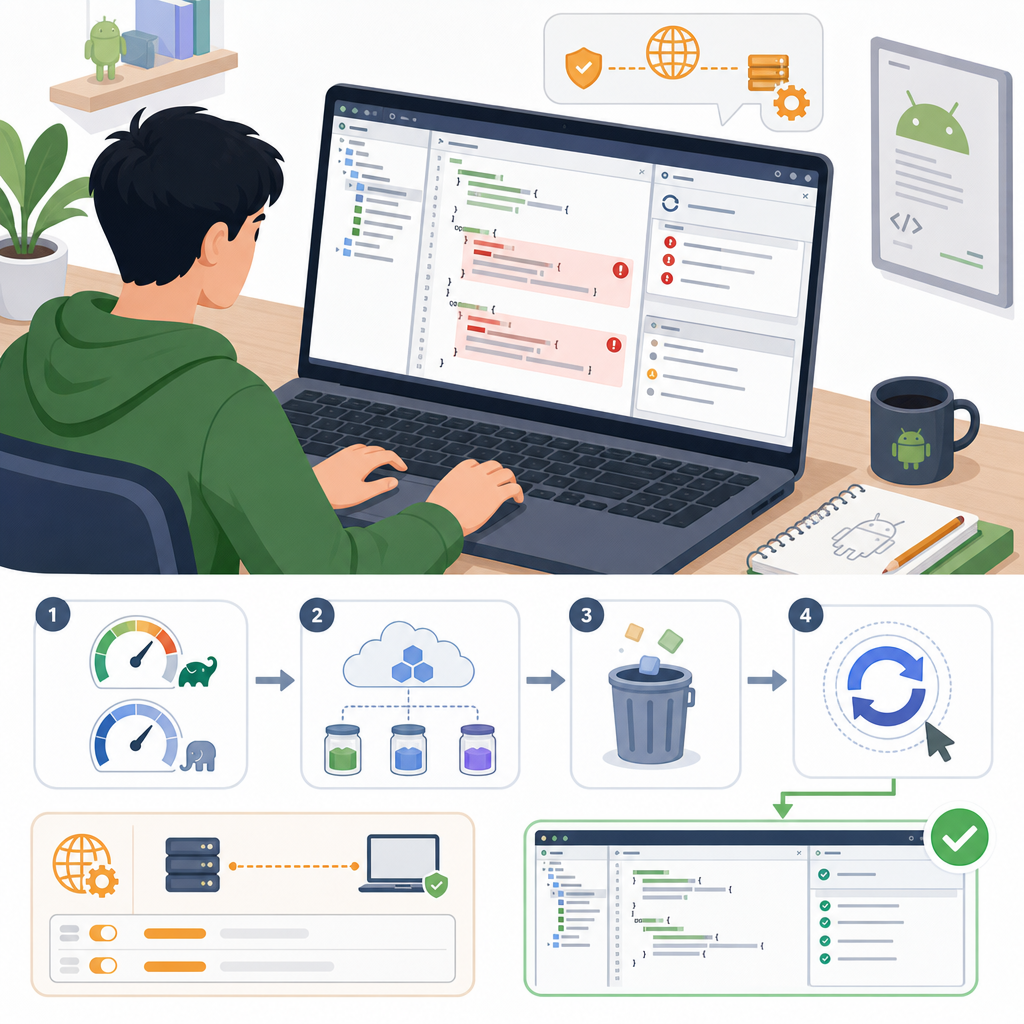
Gradle is the build system Android Studio uses to download dependencies, compile your code, merge resources/manifests, run code shrinkers (R8), and package your app. Most errors come from one of these categories:
- Version mismatch: Android Gradle Plugin (AGP) ↔ Gradle ↔ JDK ↔ Android Studio ↔ Kotlin/Compose
- Repository misconfiguration: missing
google()ormavenCentral(), or using the retired JCenter - Dependency conflicts: two libraries bringing the same class (duplicate class), or no matching variants
- SDK and manifest issues: wrong
compileSdk, missingandroid:exported - Dex/R8 problems: 64K method limit on older minSdk, or shrinker removing needed classes
- Caches: corrupted or stale Gradle cache
Quick checklist: How to fix common Gradle errors in Android Studio
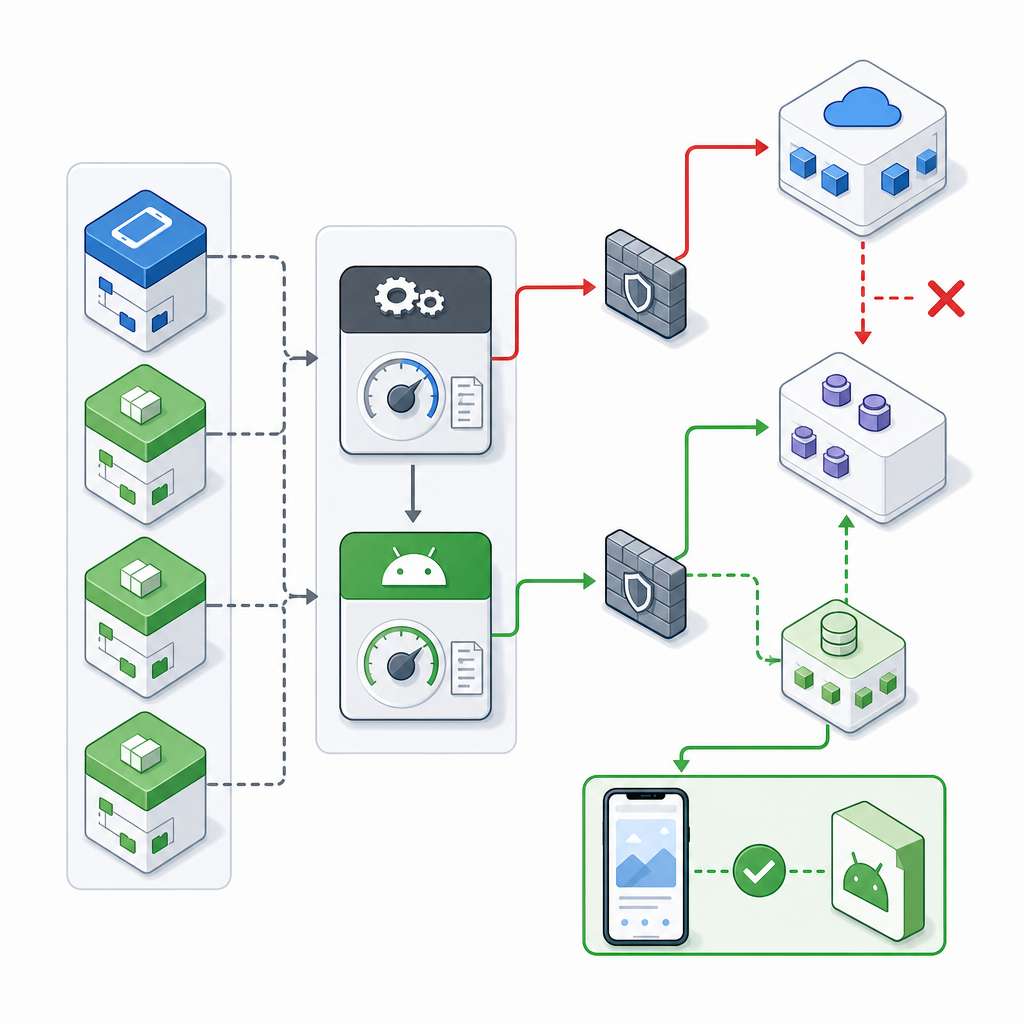
- Pick an AGP version compatible with your Android Studio and JDK 17. Then match the required Gradle version from the official table.
- Update the Gradle Wrapper and AGP together. Don’t mix old AGP with new Gradle or vice versa.
- Declare repositories in
settings.gradle(.kts)withgoogle()andmavenCentral(). Remove JCenter. - Align Kotlin and Jetpack Compose. For Kotlin 2.x, apply the Compose compiler plugin (no old compilerExtensionVersion).
- Resolve dependency conflicts using
dependenciesanddependencyInsighttasks. Exclude only the true duplicate. - For minSdk < 21 and 64K+ methods, enable multidex. Add targeted R8 keep rules when needed.
- Use Java/Kotlin toolchains to force JDK 17 and avoid local JDK drift.
- Clear Gradle caches only as a last resort; refresh repositories and resync first.
- AGP, Gradle Wrapper, and JDK are compatible; lock JDK 17 via toolchains.
settings.gradle(.kts)hasgoogle()andmavenCentral()in bothpluginManagementanddependencyResolutionManagement.- Using Kotlin 2.x? Apply
org.jetbrains.kotlin.plugin.composeand remove oldcomposeOptionscompiler extension version. - Android Studio Gradle settings: “Offline work” is disabled before syncing.
- If “duplicate class” appears, plan to run
dependencyInsightto find the exact culprit.
1) Match AGP, Gradle, JDK, and Kotlin/Compose versions first
Most “Gradle sync failed” errors stem from a version mismatch. Examples you might see:
- “Unsupported class file major version” (JDK mismatch)
- “Minimum supported Gradle is X.Y” (Gradle too old for AGP)
- “Unknown option” or task failures after upgrades (Gradle/AGP mismatch)
Step A: Check the official compatibility tables
- Android Gradle Plugin → Gradle → JDK matrix: see “About AGP” release notes
- Java versions for Android builds: see “Java versions in Android builds”
Links are listed in Sources at the end of this post.
Step B: Update the Gradle Wrapper
Edit gradle/wrapper/gradle-wrapper.properties and set a distribution that matches your chosen AGP:
Then run from the terminal (inside your project):
Step C: Update AGP and Kotlin plugins
In Kotlin DSL (recommended), set versions in your top-level settings.gradle.kts or in your module’s build.gradle.kts plugins block. Example:
Note: Versions above are examples. Always match the AGP ↔ Gradle ↔ JDK matrix from the official docs.
Step D: Use toolchains to lock JDK 17
AGP 8.x requires JDK 17. Configure toolchains so builds don’t break on different machines:
2) Fix “could not resolve dependencies” in Android Studio
This error usually means repositories are misconfigured, a dependency name/version is wrong, or network/proxy settings block downloads.
Correct repository setup (modern Gradle)
Declare repositories in settings.gradle(.kts) only. Do not rely on allprojects { repositories { ... } } in legacy scripts. Also, remove jcenter()—it’s retired and read-only.
| Topic | Legacy setup (avoid) | Modern setup (do this) |
|---|---|---|
| Repositories | Root build.gradle with allprojects { repositories { ... } } |
settings.gradle(.kts) with pluginManagement and dependencyResolutionManagement; use google() and mavenCentral() |
| JCenter | jcenter() still present |
Remove jcenter(); it’s read‑only/retired |
| Compose compiler | composeOptions.kotlinCompilerExtensionVersion configured |
On Kotlin 2.x apply id("org.jetbrains.kotlin.plugin.compose"); do not set old compiler extension version |
| Java/JDK | Relies on system JAVA_HOME and manual switching |
Use Gradle Java toolchains and kotlin { jvmToolchain(17) } to pin JDK 17 |
| Dependency versions | Hardcode every version per artifact | Use BOMs (e.g., Firebase/Compose) and/or version catalogs for alignment |
| Annotation processing | kapt for everything |
Prefer ksp when supported (Room, Moshi, etc.) |
Validate dependency coordinates
- Double-check group:artifact:version is correct.
- Prefer BOMs when available (e.g., Firebase, Compose) to avoid version drift.
Network and IDE checks
- Disable “Offline work” in Gradle settings in Android Studio.
- If you use a proxy, configure it in Gradle properties or IDE settings.
- Retry:
./gradlew --refresh-dependencies
3) Solve “Gradle build failed Android Studio” due to dependency conflicts
Duplicate class errors happen when two libraries bundle the same classes (often via transitive deps). Don’t blindly downgrade—identify the conflict and exclude the duplicate.
Inspect dependencies
Exclude the true duplicate
Example: You depend on implementation("com.example:lib-a") which pulls an older Guava that conflicts with your com.google.guava:guava version.
Prefer implementation over api
Using api in libraries leaks transitive dependencies to consumers and increases conflict risk. Use implementation unless exposure is required.
Version catalogs for consistency (optional)
Keep versions centralized in gradle/libs.versions.toml:
4) Gradle sync failed solution: SDK, manifest, and variant issues
Not every red error is a Gradle bug. Some failures are project configuration issues.
Compile SDK and target SDK
Make sure compileSdk matches what your AndroidX/Material libraries require. Keep it current to access the latest APIs.
android:exported and manifest merge
Since Android 12, components with intent filters require android:exported.
For merge conflicts, use the manifest merger tools attributes (tools:node, tools:replace) sparingly and intentionally.
No matching variant
When Gradle can’t find a variant, ensure the dependency’s min/target/ABI/build type/flavor align with your module. Usually the dependency tree output reveals which variant does not match.
5) Dex/R8 errors and multidex
If your app has more than 64K referenced methods and minSdk < 21, you need multidex. If R8 removes classes you need, add targeted keep rules.
Enable multidex
Targeted keep rules for R8
Avoid global keep-all. Keep only what’s needed, for example if using Gson to reflectively create model classes:
6) Compose and Kotlin alignment (Kotlin 2.x)
With Kotlin 2.x, the Jetpack Compose compiler moved into the Kotlin toolchain. That means:
- Apply
id("org.jetbrains.kotlin.plugin.compose") - Remove
composeOptions.kotlinCompilerExtensionVersion - Use the Compose ↔ Kotlin compatibility map to pick a supported Kotlin version
Example plugins block (repeated for clarity):
7) Prefer KSP over KAPT when possible
KAPT is in maintenance mode. For supported processors (e.g., Room), migrate to KSP for faster and more stable builds.
8) How to clear and refresh the Gradle cache to fix build errors
Try safer options before you wipe caches:
- In Android Studio, uncheck “Offline work” and click “Sync Project.”
- Refresh dependencies:
./gradlew --refresh-dependencies - Stop daemons and clean:
./gradlew --stopthen./gradlew clean
If problems persist, clear caches:
- Delete project’s
.gradle/andbuild/folders - Delete global Gradle cache (be careful, it forces redownloads):
Then resync the project.
9) Step-by-step recovery plan (beginner friendly)
- Close Android Studio. From terminal:
./gradlew --stop - Open
gradle/wrapper/gradle-wrapper.propertiesand set a Gradle version that matches your AGP. - Ensure
settings.gradle(.kts)hasgoogle(),mavenCentral()in bothpluginManagementanddependencyResolutionManagement. Removejcenter(). - Set AGP and Kotlin plugin versions that align with the official tables.
- Force JDK 17 via toolchains in Gradle and ensure your local JDK is 17 if Studio asks.
- Sync. If you get “could not resolve…”, run
./gradlew --refresh-dependenciesand check network/proxy. - If you get duplicate class errors, run
dependencies/dependencyInsight, then exclude the offending transitive dep. - If you hit method limit on
minSdk < 21, enable multidex. - As a last resort, delete
~/.gradle/cachesand the project.gradle/folder, then re-sync.
e.g., “Minimum supported Gradle…”, “Unsupported class file major version”
Fix: Align AGP ↔ Gradle ↔ JDK; update wrapper; use toolchains.
e.g., “Could not resolve …”, “Repository not found”
Fix: Add
google()/mavenCentral(); disable offline; check proxy; refresh deps.
e.g., “Duplicate class … found in …”
Fix: Use
dependencyInsight; exclude the exact transitive duplicate; align via BOM.
e.g., “android:exported missing”, “No matching variant”
Fix: Update
compileSdk; add android:exported; align variants.
e.g., method limit, missing classes after shrink
Fix: Enable multidex for
minSdk < 21; add targeted keep rules.
e.g., random/unreproducible failures
Fix:
--refresh-dependencies, stop daemons, then delete caches as last resort.
dependencyInsight, and only then clear caches.Common error messages and exact fixes
“Unsupported class file major version”
Cause: Wrong JDK. Fix: Use JDK 17 and toolchains:
“Minimum supported Gradle is X.Y” or “This Gradle version is not supported”
Cause: AGP ↔ Gradle mismatch. Fix: Update Gradle Wrapper to the version required by your AGP (see the official table).
“Could not resolve …”
Cause: Missing repos or wrong coordinates. Fix: Add google() and mavenCentral() in settings.gradle(.kts); verify dependency names; disable offline mode.
“Duplicate class … found in modules …”
Cause: Two artifacts contain the same classes. Fix: Find conflict with dependencyInsight, then exclude the duplicate or align versions using BOM or version catalogs.
“No matching variant”
Cause: Variant attributes (ABI, build type, flavors, minSdk) don’t match. Fix: Align build types/flavors or use compatible artifacts.
Minimal sample app module (Kotlin + Compose) that syncs cleanly
Output / Result
After following the steps above, you should be able to click “Sync Project with Gradle Files” without errors. A successful terminal build shows:
Android Studio’s Build window will report “Gradle build finished” and you can run the app on a device/emulator.
FAQ: How to fix common Gradle errors in Android Studio
What causes Gradle sync to fail in Android Studio?
Most sync failures are due to version mismatches (AGP ↔ Gradle ↔ JDK), missing repositories, or dependency conflicts. Fix by aligning versions with the official tables, ensuring google() and mavenCentral() are declared in settings.gradle(.kts), and resolving duplicates via dependencyInsight.
How do I fix could not resolve dependencies in Gradle for Android?
Declare repositories in settings.gradle(.kts), remove jcenter(), double-check dependency coordinates, disable offline mode, and run ./gradlew --refresh-dependencies. Use BOMs to keep related libraries in sync.
How do I update the Gradle plugin and wrapper in Android Studio?
- Pick an AGP version supported by your Studio.
- Update
gradle-wrapper.propertiesto the matching Gradle version. - Update AGP in the plugins block.
- Sync and verify JDK 17 via toolchains.
How can I clear the Gradle cache to solve build problems?
First try --refresh-dependencies and resync. If issues persist, delete ~/.gradle/caches and the project’s .gradle/ folder, then resync. Expect re-downloads.
Why do I get duplicate class errors during Gradle build and how do I fix them?
Two artifacts contribute the same classes (often via transitive dependencies). Use ./gradlew :app:dependencyInsight to find the culprit and then exclude the duplicate from one dependency or align versions with a BOM or version catalog.
People Also Ask (beginner-focused)
- how to fix Gradle sync failed in Android Studio for beginners: start by aligning AGP/Gradle/JDK, then add
google()/mavenCentral(), and resync. - step by step fix for could not resolve dependencies in Android: check repos, verify artifact names/versions, refresh dependencies, inspect network/proxy, then examine dependency trees.
- how to update Gradle and Android plugin version safely: follow the compatibility tables, update wrapper and AGP together, lock JDK 17 via toolchains, and test on a branch.
- how to clear and refresh Gradle cache to fix build errors: use
--refresh-dependencies, stop daemons, clean, and only then delete caches if needed. - fix duplicate class error in Android Studio Gradle build: run
dependencyInsight, exclude the exact transitive module, or align versions with a BOM.
Troubleshooting tips you can try right now
- Open Build Analyzer (Android Studio) to see tasks or plugins causing slow or failing builds.
- If you’re upgrading to a major Gradle version (e.g., Gradle 9), read the Gradle upgrade guide and update deprecated flags.
- If a single library causes persistent conflicts, pin its version via a version catalog or BOM and exclude older transitive copies.
Sources / Further reading
- Android Gradle Plugin version compatibility table: https://developer.android.com/build/releases/about-agp
- Java versions in Android builds: https://developer.android.com/build/jdks
- Upgrading to Gradle 9: https://docs.gradle.org/current/userguide/upgrading_major_version_9.html
- Compose compiler moved to Kotlin: Google Android Developers Blog
- Compose ↔ Kotlin compatibility map: https://developer.android.com/jetpack/androidx/releases/compose-kotlin
- Compose compiler migration guide: https://kotlinlang.org/docs/compose-compiler-migration-guide.html
- Migrate from KAPT to KSP: https://developer.android.com/build/migrate-to-ksp
- Manage remote repositories: https://developer.android.com/build/remote-repositories
By following these steps, you can confidently tackle “Gradle build failed Android Studio,” “Gradle sync failed solution,” “could not resolve dependencies Android Studio,” “Gradle version mismatch Android Studio,” and even “clear Gradle cache Android Studio” scenarios—without guesswork. Keep versions aligned, repositories clean, and your toolchains pinned to JDK 17, and your Android builds will be stable and repeatable.