In this beginner-friendly guide, you’ll learn how to create an Android service in Kotlin the modern way. We’ll cover what an Android Service is, when you should (and shouldn’t) use one, and walk through step-by-step examples: a simple started service, a foreground service with a persistent notification, and a bound service you can call from your UI. We’ll use Kotlin, coroutines, and a small Jetpack Compose screen to start, stop, and bind to services. By the end, you’ll understand the service lifecycle in Android Kotlin and how to build safe, compliant services for current Android versions.
What is an Android Service?
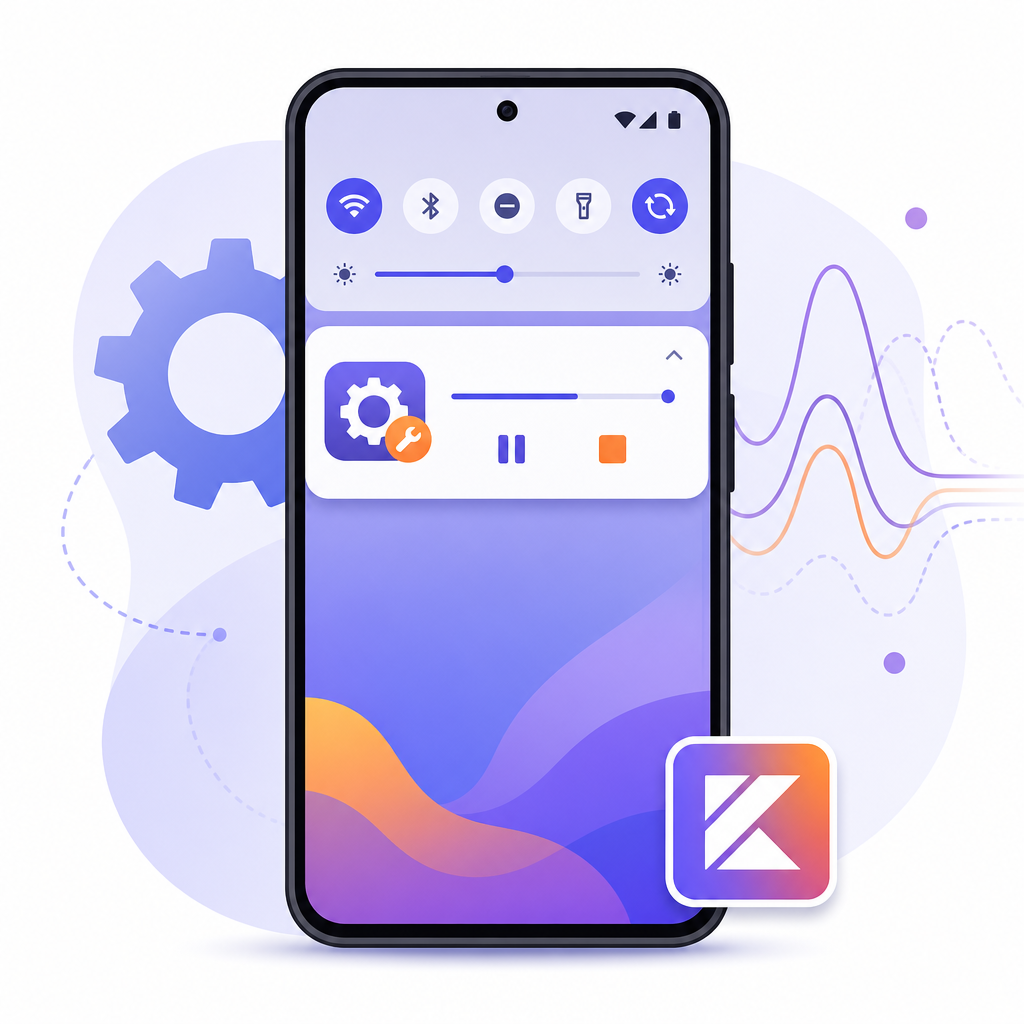
An Android Service is an application component designed to perform long-running operations in the background without a UI. Services are useful when work must continue even if your app’s activity goes away. In modern Android (Android 12–15), services are mainly for:
- User-perceptible, ongoing work that must run right now (foreground services), like media playback, turn-by-turn navigation, live uploads, or active device connections.
- Long-lived work that your UI binds to (bound services) to call methods or receive updates.
If your work is deferrable, requires constraints (like Wi‑Fi), should survive process death, or needs guaranteed retries, prefer WorkManager over a plain service. This is the recommended approach for most background tasks.
When should you use a Service in 2026?
- Use a foreground service (FGS) when work is user-initiated and user-perceptible right now and must keep running even if the user leaves your app.
- Use a bound service when your activity/fragment needs to talk to a long-lived component (for example, a download manager you control).
- Use a started service only for short tasks while your app stays in the foreground. If the app goes to background, starting a background service is restricted on modern Android.
- Use WorkManager for scheduled, deferrable, or guaranteed work (recommended for most background tasks).
Service types in Android, explained for beginners
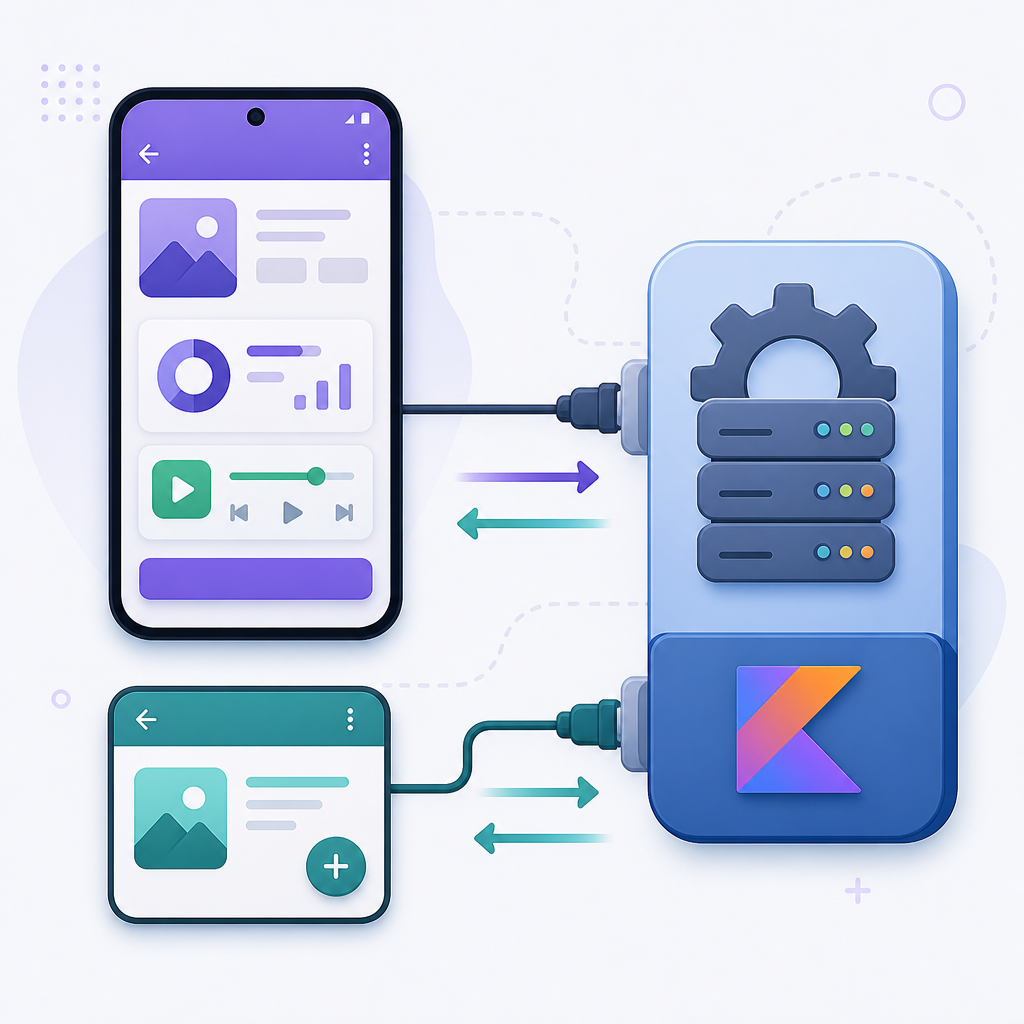
Started vs bound vs foreground services
- Started service: You call
startService()(orContextCompat.startForegroundService()). It runs until it callsstopSelf()or you callstopService(). On modern Android, you should keep these short and usually only while the app is in the foreground. - Bound service: Your UI binds with
bindService()and gets a Binder object to call service methods. The service lives as long as one or more clients remain bound. - Foreground service (FGS): A started service that shows a persistent notification and is intended for ongoing, user-perceptible work. On Android 14+, you must declare a foregroundServiceType and often a matching
FOREGROUND_SERVICE_*permission.
Quick visual comparison: services vs WorkManager
| Component | Use when | Start/Bind APIs | Notification? | Lifetime | Beginner tip |
|---|---|---|---|---|---|
| Started Service | Short work while app is foreground; no UI callbacks needed | startService(), stop with stopSelf()/stopService() |
No | Until stopped; avoid in background on Android 12+ | Keep work short; prefer WorkManager if deferrable |
| Foreground Service (FGS) | User-perceptible, ongoing work that must run now | ContextCompat.startForegroundService() then ServiceCompat.startForeground(..., type) |
Yes (ongoing) | Runs while foreground; stop when work ends; some types time out on Android 15 | Declare correct foregroundServiceType and matching permission on Android 14+ |
| Bound Service | UI needs a long-lived component to call directly | bindService()/unbindService(); use Binder |
No (unless also foreground) | Lives while at least one client is bound | Unbind in UI lifecycle to avoid leaks |
| WorkManager (not a Service) | Deferrable, guaranteed work with constraints/retries | WorkManager.enqueue(WorkRequest) |
No (system may show) | Managed by system; can survive restarts | Default choice for most background tasks |
Before you start
- Use the latest Android Gradle Plugin and target the latest stable Android SDK.
- Add Kotlin coroutines and Jetpack libraries (core-ktx, activity-compose, lifecycle if you need it).
- Understand that Android 12+ restricts starting foreground services from the background. Always start FGS from user actions when your app is visible, or use documented exemptions only.
How to create an Android service in Kotlin: step-by-step
1) Add permissions and declare services in AndroidManifest.xml
For a foreground service on Android 14+, declare the proper foregroundServiceType and its matching permission. If you show notifications on Android 13+, request POST_NOTIFICATIONS at runtime. Below is an example for a data sync foreground service plus started and bound services.
Notes:
- Pick the correct type for your FGS, such as
dataSync,mediaPlayback,location,camera,microphone, ormediaProcessing. Android 14+ requires you to declare it and pass the same type when starting foreground. - On Android 13+, most notifications require
POST_NOTIFICATIONSruntime permission (some exemptions exist like media playback/calls). You can start an FGS without it, but your notification may be restricted if permission isn’t granted.
2) Create a simple started background service in Kotlin
This started service performs a short task on a background coroutine and stops itself when done. Use this only while your app is in the foreground.
3) Create a foreground service with notification in Kotlin
A foreground service must post an ongoing notification and specify its service type. Below is a minimal data sync example that shows progress and stops itself when finished. Replace R.drawable.ic_sync with a valid small icon in your project (vector asset recommended).
Foreground service launch flow (Android 12–15)
POST_NOTIFICATIONS if you will show notificationsContextCompat.startForegroundService(Intent) from the UI threadonStartCommand: create channel, build ongoing notificationServiceCompat.startForeground(..., type) with the SAME foregroundServiceType you declaredDispatchers.IO), update notification as neededstopForeground(...) then stopSelf(). (Android 15: also handle onTimeout)ForegroundServiceStartNotAllowedException if background-start is blocked4) Create a bound service (optional, for two-way communication)
A bound service gives your UI a Binder so you can call its functions. Here’s a simple example that increments a counter every second while clients are bound.
5) Start, stop, and bind from a Jetpack Compose screen
This Compose screen:
- Requests the notifications permission on Android 13+.
- Starts/stops the foreground service.
- Starts a short started service task.
- Binds/unbinds to the bound service and shows a live counter.
Modern Android rules you must follow
Background-start restrictions (Android 12+)
- Android 12+ blocks starting a foreground service from the background except for limited exemptions. Start FGS from user actions while your app is visible, and catch
ForegroundServiceStartNotAllowedExceptionif needed. - If your work isn’t immediately user-perceptible, use WorkManager instead.
Foreground service types and timeouts (Android 14/15)
- Android 14+: You must declare the correct foregroundServiceType in your manifest and pass the same type to
ServiceCompat.startForeground. Some types also require a matchingFOREGROUND_SERVICE_*permission in the manifest. - Android 15: Certain types (such as
dataSyncandmediaProcessing) have time-limited quotas per 24 hours. Implement a prompt shutdown path and handle the service timeout by stopping the FGS if the system calls your timeout callback.
Clean up correctly and avoid leaks
- Always call
stopSelf()when your work completes in a started service. - In a foreground service, call
stopForeground(...)and thenstopSelf()when done. - Cancel coroutines in
onDestroy()to avoid leaks. - For bound services, unbind on the UI’s
onStop()/onDestroy()(or Compose lifecycle) to prevent leaks.
Pre-launch checklist: How to create an Android service in Kotlin safely
- Manifest: declare your service(s); for FGS add
android:foregroundServiceTypeand requiredFOREGROUND_SERVICE_*permission on Android 14+. - Notifications: create a channel (O+), set a valid small icon, request
POST_NOTIFICATIONS(Android 13+) if you plan to alert. - Start rules: start from visible UI; catch
ForegroundServiceStartNotAllowedExceptionon Android 12+. - Timing: call
ServiceCompat.startForeground(...)promptly afterstartForegroundService. - Work thread: run tasks on coroutines (
Dispatchers.IO); cancel inonDestroy(). - Stop path: on completion call
stopForeground(...)thenstopSelf(); handleonTimeout(API 35+). - Bound services: unbind in
onStop()/onDestroy()to avoid leaks; never hold Activity context. - Testing: verify on Android 12/13/14/15; test denial of notification permission and background-start restrictions.
- Right tool: if work is deferrable or needs constraints/retries, use WorkManager instead of a Service.
When to use WorkManager instead
For background tasks that can be deferred, need constraints (charging, Wi‑Fi), should survive device restarts, or need guaranteed execution with backoff and retries, use WorkManager. It’s the recommended API for most background work and replaces older patterns like IntentService and JobIntentService (which you should not use in new code).
Output / Result
After implementing the code above and running the app:
- Tapping “Start Foreground Service” shows an ongoing “Data sync” notification with a progress bar. After it reaches 100%, the notification disappears and the service stops.
- Tapping “Start Started Service” logs five “Working…” messages (one per second) in Logcat, then the service stops itself.
- Binding to the bound service starts a counter that increments every second. The Compose UI displays the current count. Unbinding stops the counter and releases the service.
Quick tips for success
- Use coroutines on
Dispatchers.IOfor work inside services, and cancel inonDestroy(). - Declare proper foreground service types and permissions on Android 14+.
- Handle Android 12+ foreground service background-start restrictions; start from visible UI.
- Request
POST_NOTIFICATIONSon Android 13+ if your notification needs to alert the user. - Prefer WorkManager for most background tasks that are not user-perceptible right now.
FAQ: Android service tutorial for beginners
What is an Android service and when should I use one?
An Android Service runs work outside your UI. Use a foreground service for user-perceptible, ongoing work that must run immediately (media, navigation, active uploads). Use a bound service to give your UI an API for long-lived work. For deferrable or guaranteed background tasks, prefer WorkManager.
How do I create my first background service in Kotlin?
Create a Service subclass, start coroutines for your work on Dispatchers.IO, and call stopSelf() when done. If the task must keep running and be visible to the user, create a foreground service instead and post an ongoing notification.
What is the difference between started and bound services in Android?
- Started: Launched with
startService()and runs until stopped. No direct API back to the UI. - Bound: UI binds with
bindService()and gets a Binder to call functions directly. The service lives while clients are bound.
How do I start and stop a service in Kotlin?
- Started service:
context.startService(Intent(...)), then stop withcontext.stopService(Intent(...))orstopSelf()inside the service. - Foreground service:
ContextCompat.startForegroundService(...)thenServiceCompat.startForeground(...)to post the notification within a few seconds. Stop withstopForeground(...)andstopSelf(). - Bound service:
bindService(...)to connect andunbindService(...)to disconnect.
Do foreground services require a persistent notification in Android?
Yes. Every foreground service must display an ongoing notification as long as it’s running in the foreground. On Android 13+, showing notifications generally requires the POST_NOTIFICATIONS runtime permission (with limited exemptions like media playback/calls). On Android 14+, you must also declare the correct service type and matching permissions.
Wrap-up
Now you know how to create an Android service in Kotlin using modern best practices: started, bound, and foreground services with notifications. Remember: use a foreground service only for user-perceptible, ongoing work; otherwise, prefer WorkManager. Following these patterns will keep your app reliable and compliant on Android 12 to 15.
Sources / Further reading
- Services overview (Android Developers): https://developer.android.com/develop/background-work/services
- Foreground services overview: https://developer.android.com/develop/background-work/services/fgs
- Launch a foreground service (Kotlin): https://developer.android.com/develop/background-work/services/fgs/launch
- Restrictions on starting a foreground service from the background (Android 12+): https://developer.android.com/develop/background-work/services/fgs/restrictions-bg-start
- Foreground service types (Android 14+/15): https://developer.android.com/develop/background-work/services/fgs/service-types
- Android 14 behavior change: FGS types required: https://developer.android.com/about/versions/14/changes/fgs-types-required
- Foreground service timeouts (Android 15): https://developer.android.com/develop/background-work/services/fgs/timeout
- What’s new in foreground services (Android 15): https://developer.android.com/develop/background-work/services/fgs/changes