How to Add SearchView to RecyclerView in Android

How to Add SearchView to RecyclerView in Android


Want to learn how to add SearchView to RecyclerView in Android the modern, beginner-friendly way? In this step-by-step guide, you’ll build a live search list using Kotlin, AppCompat’s SearchView, a RecyclerView ListAdapter (DiffUtil), and a ViewModel with Kotlin Flows. You’ll also see a quick Java example, tips for Room database filtering, and a short Jetpack Compose alternative. By the end, you’ll know how to connect a SearchView to filter a RecyclerView list smoothly and efficiently.

What are SearchView and RecyclerView?

How to add SearchView to RecyclerView in Android: before-and-after filtered list on a phone UI (Kotlin).
Search bar filtering a RecyclerView list in an Android app built with Kotlin.

RecyclerView displays a scrollable list of items efficiently. SearchView is a text input control (commonly placed in the app bar) that lets users type a query. Combining them gives you a live, responsive in-app search.

This tutorial focuses on AppCompat’s SearchView (androidx.appcompat.widget.SearchView) inside the app bar. It’s the recommended approach for View-based UIs.

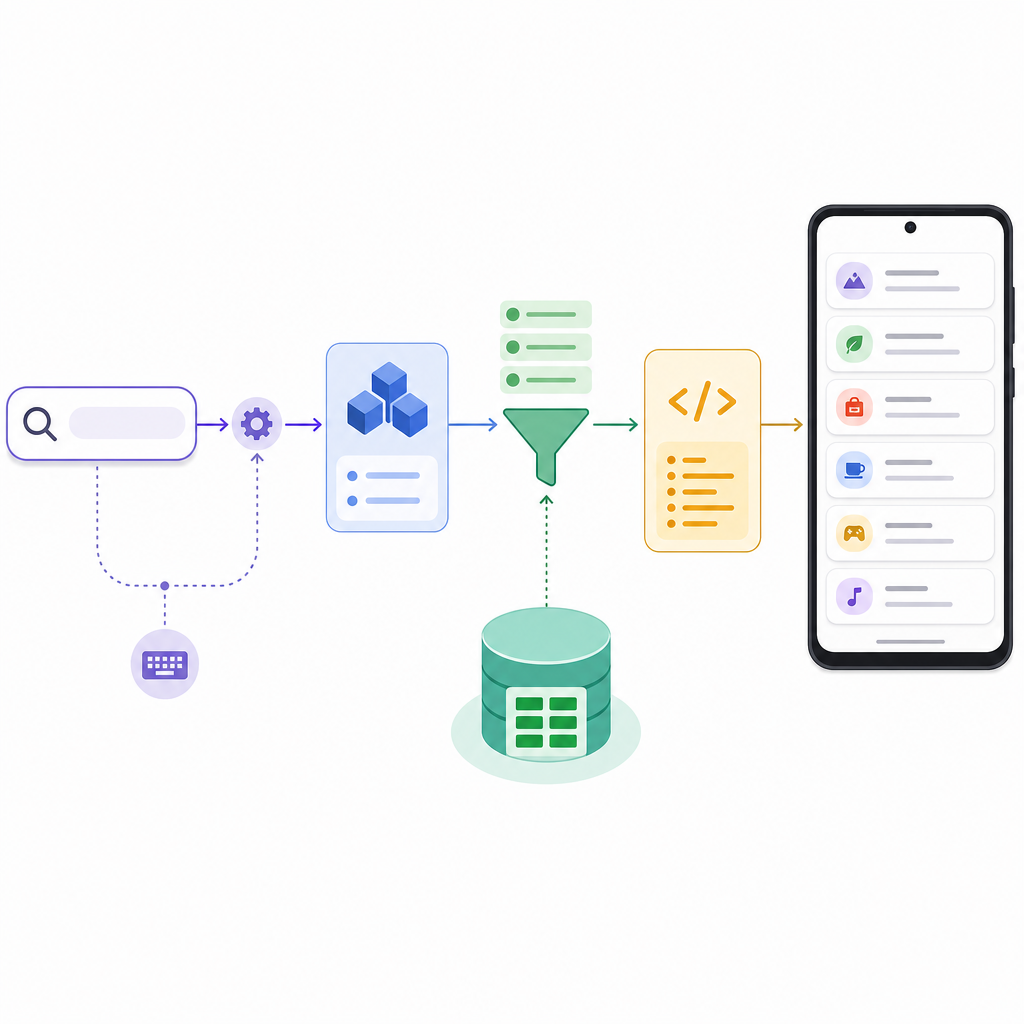
How SearchView filters RecyclerView (flow)
1. User types in SearchView
2. Fragment forwards text to ViewModel (StateFlow)
3. ViewModel debounces and filters (in‑memory or Room/FTS)
4. Submit to ListAdapter (DiffUtil)
5. RecyclerView updates smoothly

Tip: Keep filtering in ViewModel; adapters should only render.

When should you add search to RecyclerView?

Flow of SearchView query through ViewModel and adapter to update a RecyclerView in Android (Kotlin).
How SearchView input travels through ViewModel and adapter to refresh a RecyclerView.

Use SearchView with RecyclerView when:

  • You have a small/medium in-memory list and want to filter it live as the user types.
  • You store data locally with Room and want to search by name, title, or description using LIKE or FTS.
  • You want a simple, fast UX without navigating to a separate “search screen.”

For very large datasets or remote data, integrate the query with Room + Paging 3 or with your network API’s search endpoint.

Choose your search approach
Approach Best for How it filters Pros Watch‑outs
ViewModel + StateFlow + ListAdapter (Kotlin, this guide) Small/medium in-memory lists, beginners Filter in ViewModel with debounce Clean architecture, smooth DiffUtil animations Avoid heavy work on main thread; don’t mutate lists in place
Adapter implements Filterable (Java) Very small lists, quick demos Adapter filters its own copy Minimal setup, no ViewModel needed Harder to test; can get messy; not ideal for growth
Room (LIKE or FTS) + Flow Persistent/local data; larger sets Database runs the query and emits results Scales better; offloads work to DB Set up DAOs/entities; FTS requires extra table
Paging 3 + Room/API Huge or remote datasets Query drives new Pager/PagingSource Streaming pages; memory efficient More boilerplate; handle query resets carefully

Project setup (Kotlin, Views)

Make sure you have these dependencies in your module’s build.gradle:

// RecyclerView
implementation("androidx.recyclerview:recyclerview:1.3.2")
// AppCompat (for SearchView in the app bar)
implementation("androidx.appcompat:appcompat:1.7.0")
// Material (optional Toolbar/SearchBar UI)
implementation("com.google.android.material:material:1.12.0")
// Lifecycle + coroutines (for Flow in ViewModel)
implementation("androidx.lifecycle:lifecycle-runtime-ktx:2.8.4")
implementation("androidx.lifecycle:lifecycle-viewmodel-ktx:2.8.4")
implementation("org.jetbrains.kotlinx:kotlinx-coroutines-android:1.8.1")
Quick checklist: Add SearchView to RecyclerView (Kotlin)
  • Add dependencies: AppCompat, RecyclerView, Lifecycle, Coroutines.
  • Create a Toolbar menu item with app:actionViewClass="androidx.appcompat.widget.SearchView".
  • Build a ListAdapter with DiffUtil and a simple item layout.
  • Create a ViewModel with StateFlow for query and filtered list (use debounce).
  • In Fragment/Activity, inflate menu, get SearchView, set OnQueryTextListener, forward text to ViewModel.
  • Collect filtered list and call adapter.submitList(list).
  • Optional: Restore query after rotation by reading ViewModel.currentQuery and expanding the action view.
  • For larger data, move filtering to Room (LIKE/FTS) or Paging 3.

How to add SearchView to RecyclerView in Android (Kotlin, step by step)

This section shows a complete example for beginners: an in-memory list of countries filtered by a SearchView in the app bar. It uses a Fragment, a ViewModel with StateFlow, and a ListAdapter + DiffUtil for smooth updates.

1) Model and sample data

Kotlin
Code
data class Country(val id: Int, val name: String)

object SampleData {
    val countries = listOf(
        Country(1, "Argentina"),
        Country(2, "Australia"),
        Country(3, "Brazil"),
        Country(4, "Canada"),
        Country(5, "Denmark"),
        Country(6, "France"),
        Country(7, "Germany"),
        Country(8, "India"),
        Country(9, "Japan"),
        Country(10, "Kenya"),
        Country(11, "Mexico"),
        Country(12, "Nepal"),
        Country(13, "Norway"),
        Country(14, "Spain"),
        Country(15, "United States")
    )
}

2) RecyclerView adapter with DiffUtil (ListAdapter)

Kotlin
Code
class="cd-package">import android.view.LayoutInflater
class="cd-package">import android.view.View
class="cd-package">import android.view.ViewGroup
class="cd-package">import android.widget.TextView
class="cd-package">import androidx.recyclerview.widget.DiffUtil
class="cd-package">import androidx.recyclerview.widget.ListAdapter
class="cd-package">import androidx.recyclerview.widget.RecyclerView

class CountryAdapter : ListAdapter<Country, CountryAdapter.VH>(Diff) {

    object Diff : DiffUtil.ItemCallback<Country>() {
        override fun areItemsTheSame(oldItem: Country, newItem: Country) = oldItem.id == newItem.id
        override fun areContentsTheSame(oldItem: Country, newItem: Country) = oldItem == newItem
    }

    class VH(itemView: View) : RecyclerView.ViewHolder(itemView) {
        class="cd-keyword cd-access">private val title: TextView = itemView.findViewById(R.id.countryName)
        fun bind(item: Country) {
            title.text = item.name
        }
    }

    override fun onCreateViewHolder(parent: ViewGroup, viewType: Int): VH {
        val view = LayoutInflater.from(parent.context)
            .inflate(R.layout.item_country, parent, false)
        return VH(view)
    }

    override fun onBindViewHolder(holder: VH, position: Int) {
        holder.bind(getItem(position))
    }
}

3) Layouts (RecyclerView + item)

fragment_countries.xml

XML
Code
<LinearLayout xmlns:android="http://schemas.android.com/apk/res/android"
    xmlns:app="http://schemas.android.com/apk/res-auto"
    android:layout_width="match_parent"
    android:layout_height="match_parent"
    android:orientation="vertical">

    <com.google.android.material.appbar.MaterialToolbar
        android:id="@+id/toolbar"
        android:layout_width="match_parent"
        android:layout_height="?attr/actionBarSize"
        app:title="Countries" />

    <androidx.recyclerview.widget.RecyclerView
        android:id="@+id/countriesRecycler"
        android:layout_width="match_parent"
        android:layout_height="0dp"
        android:layout_weight="1"
        android:clipToPadding="false"
        android:padding="8dp" />

</LinearLayout>

item_country.xml

XML
<TextView xmlns:android="http://schemas.android.com/apk/res/android"
android:id="@+id/countryName"
android:layout_width="match_parent"
android:layout_height="56dp"
android:gravity="center_vertical"
android:paddingHorizontal="16dp"
android:textAppearance="?attr/textAppearanceBodyLarge" />

4) Menu with SearchView in the app bar

menu_countries.xml

XML
Code
<menu xmlns:android="http://schemas.android.com/apk/res/android"
    xmlns:app="http://schemas.android.com/apk/res-auto">

    <item
        android:id="@+id/action_search"
        android:title="Search"
        android:icon="@android:drawable/ic_menu_search"
        app:showAsAction="ifRoom|collapseActionView"
        app:actionViewClass="androidx.appcompat.widget.SearchView" />

</menu>

Note: We use androidx.appcompat.widget.SearchView and the menu item’s app:actionViewClass to insert it in the toolbar.

5) ViewModel: query + filtering with Flow

Kotlin
Code
class="cd-package">import androidx.lifecycle.ViewModel
class="cd-package">import androidx.lifecycle.viewModelScope
class="cd-package">import kotlinx.coroutines.FlowPreview
class="cd-package">import kotlinx.coroutines.flow.MutableStateFlow
class="cd-package">import kotlinx.coroutines.flow.SharingStarted
class="cd-package">import kotlinx.coroutines.flow.combine
class="cd-package">import kotlinx.coroutines.flow.debounce
class="cd-package">import kotlinx.coroutines.flow.stateIn

class="cd-annotation">@OptIn(FlowPreview::class)
class CountriesViewModel : ViewModel() {

    class="cd-keyword cd-access">private val allCountries = MutableStateFlow(SampleData.countries)
    class="cd-keyword cd-access">private val query = MutableStateFlow("")

    // Expose current query (useful to restore text on rotation)
    val currentQuery = query

    // Filter with debounce for smoother typing
    val filtered = combine(allCountries, query.debounce(250)) { list, q ->
        if (q.isBlank()) list
        else {
            val normalized = q.trim().lowercase()
            list.filter { it.name.lowercase().contains(normalized) }
        }
    }.stateIn(viewModelScope, SharingStarted.Lazily, SampleData.countries)

    fun onQueryChange(newQuery: String) {
        query.value = newQuery
    }
}

6) Fragment: wire SearchView to ViewModel and RecyclerView

Kotlin
Code
class="cd-package">import android.os.Bundle
class="cd-package">import android.view.Menu
class="cd-package">import android.view.MenuInflater
class="cd-package">import android.view.MenuItem
class="cd-package">import android.view.View
class="cd-package">import androidx.activity.addCallback
class="cd-package">import androidx.core.view.MenuHost
class="cd-package">import androidx.core.view.MenuProvider
class="cd-package">import androidx.fragment.app.Fragment
class="cd-package">import androidx.fragment.app.viewModels
class="cd-package">import androidx.lifecycle.Lifecycle
class="cd-package">import androidx.lifecycle.lifecycleScope
class="cd-package">import androidx.recyclerview.widget.LinearLayoutManager
class="cd-package">import kotlinx.coroutines.flow.collectLatest
class="cd-package">import kotlinx.coroutines.launch

class CountriesFragment : Fragment(R.layout.fragment_countries) {

    class="cd-keyword cd-access">private val viewModel: CountriesViewModel by viewModels()
    class="cd-keyword cd-access">private lateinit var adapter: CountryAdapter

    override fun onViewCreated(view: View, savedInstanceState: Bundle?) {
        super.onViewCreated(view, savedInstanceState)

        val toolbar = view.findViewById<com.google.android.material.appbar.MaterialToolbar>(R.id.toolbar)
        val recycler = view.findViewById<androidx.recyclerview.widget.RecyclerView>(R.id.countriesRecycler)

        adapter = CountryAdapter()
        recycler.layoutManager = LinearLayoutManager(requireContext())
        recycler.setHasFixedSize(true)
        recycler.adapter = adapter

        // Add menu with SearchView using MenuHost API
        val menuHost: MenuHost = requireActivity()
        menuHost.addMenuProvider(object : MenuProvider {
            override fun onCreateMenu(menu: Menu, menuInflater: MenuInflater) {
                menuInflater.inflate(R.menu.menu_countries, menu)
                val searchItem = menu.findItem(R.id.action_search)
                val searchView = searchItem.actionView as androidx.appcompat.widget.SearchView
                searchView.queryHint = "Search countries"
                // Optional: restore text after rotation/back stack
                val initial = viewModel.currentQuery.value
                if (initial.isNotBlank()) {
                    searchItem.expandActionView()
                    searchView.setQuery(initial, false)
                    searchView.clearFocus()
                }
                searchView.setOnQueryTextListener(object : androidx.appcompat.widget.SearchView.OnQueryTextListener {
                    override fun onQueryTextSubmit(query: String?): Boolean {
                        // No submit needed for live search
                        return true
                    }
                    override fun onQueryTextChange(newText: String?): Boolean {
                        viewModel.onQueryChange(newText.orEmpty())
                        return true
                    }
                })
            }
            override fun onMenuItemSelected(menuItem: MenuItem): Boolean = false
        }, viewLifecycleOwner, Lifecycle.State.RESUMED)

        // Collect filtered list and submit to adapter
        viewLifecycleOwner.lifecycleScope.launch {
            viewLifecycleOwner.lifecycle.addObserver(object : androidx.lifecycle.DefaultLifecycleObserver {})
            viewModel.filtered.collectLatest { list ->
                adapter.submitList(list)
            }
        }
    }
}

That’s it. You now have live search in a RecyclerView powered by a SearchView and ViewModel.

7) Why this approach is recommended

  • Responsiveness: Debounced Flow avoids heavy work on every keystroke.
  • Separation of concerns: Filtering happens in ViewModel, adapter just renders.
  • DiffUtil animations: ListAdapter brings efficient, animated updates.
  • State handling: ViewModel preserves the current query on rotation.

Java RecyclerView search example (small lists)

If you need a Java RecyclerView search example, here’s a minimal variant using Filterable inside the adapter. This is okay for small in-memory lists; for larger lists or databases, prefer the ViewModel + Flow approach.

Java
Code
class="cd-keyword cd-access">public class CountryAdapterJava extends RecyclerView.Adapter<CountryAdapterJava.VH> implements Filterable {
    class="cd-keyword cd-access">private final List<Country> original;
    class="cd-keyword cd-access">private final List<Country> filtered = new ArrayList<>();

    class="cd-keyword cd-access">public CountryAdapterJava(List<Country> data) {
        original = new ArrayList<>(data);
        filtered.addAll(data);
    }

    static class VH extends RecyclerView.ViewHolder {
        TextView title;
        VH(class="cd-annotation">@NonNull View itemView) {
            super(itemView);
            title = itemView.findViewById(R.id.countryName);
        }
        void bind(Country c) { title.setText(c.getName()); }
    }

    class="cd-annotation">@NonNull class="cd-annotation">@Override
    class="cd-keyword cd-access">public VH onCreateViewHolder(class="cd-annotation">@NonNull ViewGroup parent, int viewType) {
        View v = LayoutInflater.from(parent.getContext()).inflate(R.layout.item_country, parent, false);
        return new VH(v);
    }

    class="cd-annotation">@Override class="cd-keyword cd-access">public void onBindViewHolder(class="cd-annotation">@NonNull VH holder, int position) {
        holder.bind(filtered.get(position));
    }

    class="cd-annotation">@Override class="cd-keyword cd-access">public int getItemCount() { return filtered.size(); }

    class="cd-annotation">@Override class="cd-keyword cd-access">public Filter getFilter() {
        return new Filter() {
            class="cd-annotation">@Override class="cd-keyword cd-access">protected FilterResults performFiltering(CharSequence constraint) {
                String q = constraint == null ? "" : constraint.toString().trim().toLowerCase(Locale.ROOT);
                List<Country> out = new ArrayList<>();
                if (q.isEmpty()) out.addAll(original);
                else for (Country c : original) {
                    if (c.getName().toLowerCase(Locale.ROOT).contains(q)) out.add(c);
                }
                FilterResults fr = new FilterResults();
                fr.values = out;
                return fr;
            }
            class="cd-annotation">@Override class="cd-keyword cd-access">protected void publishResults(CharSequence constraint, FilterResults results) {
                filtered.clear();
                //noinspection unchecked
                filtered.addAll((List<Country>) results.values);
                notifyDataSetChanged(); // OK for small lists
            }
        };
    }
}

In your Activity/Fragment menu setup:

Java
Code
MenuItem item = menu.findItem(R.id.action_search);
androidx.appcompat.widget.SearchView sv =
        (androidx.appcompat.widget.SearchView) item.getActionView();
sv.setOnQueryTextListener(new androidx.appcompat.widget.SearchView.OnQueryTextListener() {
    class="cd-annotation">@Override class="cd-keyword cd-access">public boolean onQueryTextSubmit(String query) { return true; }
    class="cd-annotation">@Override class="cd-keyword cd-access">public boolean onQueryTextChange(String newText) {
        adapter.getFilter().filter(newText);
        return true;
    }
});

Filtering with Room (LIKE and FTS) for larger data

For persistent data, let Room handle search and return a Flow to your ViewModel.

Room with LIKE

Kotlin
Code
class="cd-annotation">@Dao
interface CountryDao {
    class="cd-annotation">@Query("SELECT * FROM countries WHERE name LIKE '%' || :query || '%' ORDER BY name")
    fun searchCountries(query: String): kotlinx.coroutines.flow.Flow<List<CountryEntity>>
}

Room with Full-Text Search (FTS)

FTS is faster for long text and large datasets.

Kotlin
Code
class="cd-annotation">@Entity
data class CountryEntity(
    class="cd-annotation">@PrimaryKey val id: Int,
    val name: String
)

class="cd-annotation">@Fts4(contentEntity = CountryEntity::class)
class="cd-annotation">@Entity(tableName = "countries_fts")
data class CountryFts(
    class="cd-annotation">@PrimaryKey(autoGenerate = true) val rowid: Int = 0,
    val name: String
)

class="cd-annotation">@Dao
interface CountryFtsDao {
    // FTS table uses MATCH
    class="cd-annotation">@Query("SELECT countries.* FROM countries JOIN countries_fts ON (countries_fts.rowid = countries.id) WHERE countries_fts MATCH :query")
    fun searchFts(query: String): kotlinx.coroutines.flow.Flow<List<CountryEntity>>
}

ViewModel with Room

Kotlin
Code
class CountriesRoomViewModel(
    class="cd-keyword cd-access">private val dao: CountryDao
) : ViewModel() {
    class="cd-keyword cd-access">private val query = MutableStateFlow("")
    val results = query
        .debounce(250)
        .flatMapLatest { q -> dao.searchCountries(q) }
        .stateIn(viewModelScope, SharingStarted.Lazily, emptyList())

    fun onQueryChange(q: String) { query.value = q }
}

Now you only submit the Room results to your ListAdapter. For very large lists or remote search, integrate Paging 3 so your list loads pages as you type.

Paging 3 for huge or paged search

  • Keep a MutableStateFlow(query) in your ViewModel.
  • Each time the query changes, create a new Pager with a PagingSource that uses the query.
  • Submit the PagingData to a PagingDataAdapter.

This avoids loading the entire dataset into memory and keeps the UI smooth.

Material 3 SearchBar and Jetpack Compose (optional alternative)

If you’re building with Compose instead of RecyclerView, here is a live search in RecyclerView Android example equivalent using Material3’s SearchBar and LazyColumn:

Kotlin
Code
class="cd-annotation">@OptIn(androidx.compose.material3.ExperimentalMaterial3Api::class)
class="cd-annotation">@Composable
fun CountrySearchScreen(vm: CountriesViewModel) {
    var query by rememberSaveable { mutableStateOf("") }
    val items by vm.filtered.collectAsStateWithLifecycle()

    LaunchedEffect(query) { vm.onQueryChange(query) }

    androidx.compose.material3.SearchBar(
        query = query,
        onQueryChange = { query = it },
        onSearch = { /* no-op */ },
        active = true,
        onActiveChange = { /* keep active */ },
        placeholder = { Text("Search countries") }
    ) {
        LazyColumn {
            items(items, key = { it.id }) { country ->
                Text(
                    text = country.name,
                    modifier = Modifier
                        .fillMaxWidth()
                        .padding(16.dp)
                )
            }
        }
    }
}

Compose is great for new UIs, but if you’re learning classic Views, RecyclerView plus AppCompat SearchView remains perfectly valid.

Output / Result

When you run the app:

  • Tapping the search icon expands a SearchView in the toolbar.
  • As you type, the RecyclerView list updates instantly (debounced), showing only items matching your query (case-insensitive).
  • Clearing the text returns the full list. The query survives rotation and back navigation because it lives in the ViewModel.

Troubleshooting and tips

  • RecyclerView not filtering? Ensure you’re calling adapter.submitList(newList) with a fresh List instance from your ViewModel (not mutating the existing list in place).
  • SearchView events not firing? Use app:actionViewClass="androidx.appcompat.widget.SearchView" and set your OnQueryTextListener after inflating the menu.
  • Janky typing? Debounce query changes and do heavy work off the main thread (Flows handle this well). Avoid filtering giant lists on the UI thread.
  • Wrong case/locale? Normalize both query and item text with .lowercase() (or locale-aware comparison if needed).
  • Adapter shows stale data? When using ListAdapter, don’t call notifyDataSetChanged(). Just call submitList() with the latest list.

FAQ: People also ask

How do I connect a SearchView to filter a RecyclerView list?

Place AppCompat SearchView in the app bar (menu item with app:actionViewClass), set an OnQueryTextListener, and forward text changes to your ViewModel. The ViewModel filters the list (Flow/LiveData) and you submit the result to a ListAdapter.

Can I add search to RecyclerView without using a database?

Yes. Keep your list in memory and filter it in the ViewModel as the query changes. This is ideal for small/medium lists and learning projects.

What is the simplest way to implement RecyclerView search in Kotlin?

Use a Fragment + AppCompat SearchView + ViewModel with StateFlow + ListAdapter. It’s only a few files and gives you smooth updates and clean architecture.

How do I update the RecyclerView adapter when the SearchView text changes?

On each query update, emit a new filtered list from the ViewModel and call adapter.submitList(newList) in the Fragment/Activity.

Why is my RecyclerView not filtering when I type in SearchView?

Common causes: you didn’t attach OnQueryTextListener; you’re mutating the same List instance (DiffUtil won’t detect changes); you used the platform android.widget.SearchView instead of AppCompat; or you forgot to cast actionView to androidx.appcompat.widget.SearchView.

Key takeaways

  • The best beginner-friendly pattern is: SearchView in app bar → ViewModel filters via Flow → ListAdapter submits.
  • For databases, push filtering to Room (LIKE or FTS) and collect a Flow.
  • For huge data or network search, integrate with Paging 3.
  • Avoid legacy patterns like filtering in the adapter for large lists or using deprecated menu APIs.

Sources / Further reading

By following this tutorial on How to add SearchView to RecyclerView in Android, you’ve learned a simple, modern approach suitable for students and Android beginners. Adapt it to your own data source, and when your app grows, switch to Room and Paging 3 for scalable, performant search.


Subscribe
Notify of
guest
0 Comments
Oldest
Newest Most Voted