In this step-by-step guide, you will learn how to show Toast and Snackbar in Android using both modern Jetpack Compose (Kotlin) and classic Views (Kotlin/Java). We will cover when to use each component, implementation patterns, best practices, customization, and common pitfalls. If you are a student or beginner looking for an Android Toast tutorial for beginners or an Android Snackbar tutorial step by step, this tutorial is for you.
What are Toast and Snackbar?
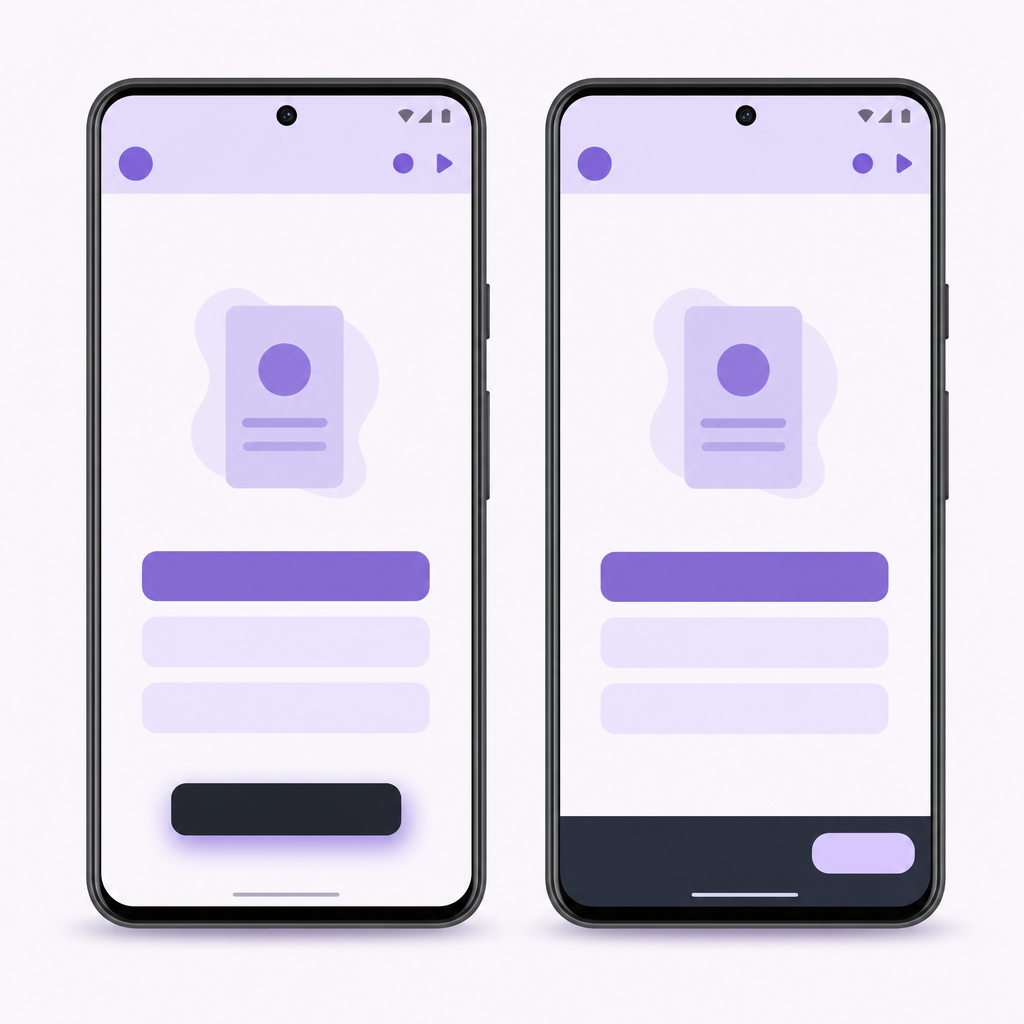
Both Toast and Snackbar are lightweight UI mechanisms for brief feedback:
- Toast: A short, passive message that appears near the bottom of the screen. It is non-blocking and has no action.
- Snackbar: A brief, in-app message with optional action (for example, “UNDO”). It appears over your UI and can be dismissed or interacted with.
Toast vs Snackbar in Android explained
- Use Toast for quick, non-actionable status like “Saved” or “Message sent”. It’s simple and passive.
- Use Snackbar when the user is in the foreground and you want to offer an action like “Undo”, “Retry”, or “Dismiss”.
Important modern behavior changes:
- Android 12+: Toasts are standardized by the system: limited to two lines and include your app icon. Keep messages short and don’t rely on custom styling.
- Android 11+: Custom Toast views and background app behavior are restricted; simple text Toasts are system-rendered. Avoid custom Toast layouts.
Official docs: Toasts overview, Android 12 behavior changes, Android 11 compatibility changes.
– Kotlin/Java: Toast.makeText(context, “Saved”, LENGTH_SHORT).show()
– Compose: use LocalContext.current
– Compose: Set up Scaffold + SnackbarHostState, call showSnackbar and handle SnackbarResult
↓
2) On action: scope.launch { showSnackbar(message, actionLabel) }
↓
3) if (result == ActionPerformed) → run undo/retry
↓
4) Style via SnackbarHost if needed
↓
2) Snackbar.make(root, text, duration)
↓
3) .setAction(“UNDO”) { handle }
↓
4) Optional: .setAnchorView(FAB) + tints
↓
5) .show()
Prerequisites
To follow along, you should have:
- Android Studio (latest stable)
- Basic knowledge of Kotlin (recommended) and/or Java
- A project using either Jetpack Compose (Material 3) or classic Views
Suggested dependencies (use the latest versions):
How to show Toast and Snackbar in Android
Show a Toast (Kotlin, classic Views)
The simplest Toast usage is one line. This works from an Activity, Fragment, or any place you have a valid Context.
Show a Toast in Android Kotlin from Jetpack Compose
Use LocalContext.current to get a Context and trigger a Toast from a button click:
Show a Toast in Android (Java, classic Views)
Best practice for Toast duration in Android
- Use
Toast.LENGTH_SHORTfor most cases (about 2 seconds). - Use
Toast.LENGTH_LONGsparingly (about 3.5 seconds). - Keep the text concise. Android 12+ limits Toasts to two lines and shows your app icon.
- Avoid custom Toast views; they’re restricted and inconsistent on modern Android.
Show a Snackbar (Compose and classic Views)
Snacks are the modern, user-friendly way to provide feedback with optional action. For new apps, prefer Jetpack Compose + Material 3. For existing Views-based UIs, use the Material Components Snackbar.
Snackbar in Jetpack Compose (Material 3)
In Compose, you display snackbars with a SnackbarHostState placed inside a Scaffold. Calling showSnackbar() is a suspending function, so launch it from a coroutine.
Notes:
showSnackbar()returns aSnackbarResult(ActionPerformedorDismissed), letting you react to the user’s choice.- For
SnackbarDuration.Indefinite, provide an action or dismiss affordance so users can clear it.
How to change Snackbar color and text in Android (Compose)
You can customize the appearance by providing your own Snackbar content to SnackbarHost. This example tweaks container and action colors using Material 3 theme colors.
Snackbar in classic Views (Kotlin)
You can show a Snackbar by calling Snackbar.make(view, text, duration) and optionally setAction. Use any view in your layout that is attached to the window (e.g., the root of your Activity or Fragment) as the anchor view.
Show Snackbar in Android Java (with action and colors)
This example also demonstrates changing background and text colors. You can optionally anchor the Snackbar to a specific view (e.g., a FAB) so it avoids overlapping bottom bars.
Step-by-step mini project (Compose): Delete with UNDO
Let’s combine it all into a simple Compose screen that deletes an item and allows undo via Snackbar.
- Choose component: Need action/undo? Use Snackbar; otherwise, use Toast.
- Compose Snackbar: Use a single SnackbarHostState inside Scaffold; call showSnackbar in a coroutine and handle SnackbarResult.
- Views Snackbar: Ensure the anchor/root View is attached (e.g., android.R.id.content), then call Snackbar.make(…).
- Toast context: Use Activity/Fragment context; in Fragments prefer requireContext().
- Duration: Prefer SHORT; only use LONG/Indefinite for messages that need more time or an explicit action.
- Accessibility: Keep text concise, provide clear action labels (“UNDO”, “RETRY”), ensure color contrast for custom styles.
- Do not stack: Avoid firing multiple Snackbars rapidly; queue or coalesce messages.
- Modern behavior: Avoid custom Toast views on Android 11+; rely on system Toast styling.
- Anchoring: Anchor Snackbars to FAB/BottomAppBar when needed to prevent overlap.
Troubleshooting: Why is my Toast or Snackbar not showing in Android?
- Calling from background thread: UI feedback should run on the main thread. In Compose, call
showSnackbar()from a coroutine launched on the main dispatcher (the default forrememberCoroutineScope()). - Invalid Context or View:
- Toast requires a valid
Context. For Fragments, userequireContext()instead ofgetContext()if nullability is an issue. - Snackbar requires a View attached to window. Use your Activity’s content view (
findViewById(android.R.id.content)) or a view in the current layout.
- Toast requires a valid
- Background restrictions: Don’t try to show Toasts from background services or when the app is not in foreground; modern Android may block or alter behavior.
- Compose setup missing: In Compose, ensure your
Scaffoldhas aSnackbarHostwith the sameSnackbarHostStateyou’re calling. - Duration too short: If the user routinely misses the message, consider
SnackbarDuration.Longor offerIndefinitewith a dismiss or action.
Output / Result
After implementing the examples above:
- Tapping “Show Toast” briefly displays a small popup near the bottom with your message (no action button).
- Tapping “Delete item” shows a Snackbar with the text “Item deleted” and an “UNDO” button anchored above the system nav/gesture area. Pressing UNDO restores the deleted item.
- Styled Snackbar variants respect your chosen colors, improving contrast and aligning with Material 3 design.
FAQ: People also ask
What is a Toast message in Android and when should I use it?
A Toast is a short, passive notification for non-critical feedback like “Saved” or “Updated”. Use it for quick status messages that require no user action. Keep it brief; Android 12+ toasts are capped to two lines and show the app icon.
How is a Snackbar different from a Toast in Android?
A Snackbar appears over your app’s UI and can include an optional action (e.g., UNDO). It’s ideal for recoverable operations or when you want to give users a quick choice. A Toast is passive and has no actions.
How do I show a Toast in Kotlin and Java?
Kotlin: Toast.makeText(context, "Hello", Toast.LENGTH_SHORT).show(). Java: Toast.makeText(this, "Hello", Toast.LENGTH_SHORT).show(). In Compose, use LocalContext.current to access the context.
How do I add an action button to a Snackbar in Android?
Compose: call snackbarHostState.showSnackbar(message, actionLabel = "UNDO") and handle SnackbarResult.ActionPerformed.
Views (Java/Kotlin): Snackbar.make(view, "Text", LENGTH_LONG).setAction("UNDO") { /* handle */ }.show().
Why is my Toast or Snackbar not showing in Android?
Common reasons: calling from background thread, invalid Context, Snackbar’s view not attached to window, missing SnackbarHost in Compose, or platform restrictions for background apps. See the troubleshooting section above for fixes.
Extra tips and best practices
- Use plain, action-oriented language: “Item deleted” + “UNDO”.
- Don’t stack multiple Snackbars rapidly; each
SnackbarHostStateshows one at a time. - For accessibility, keep actions short and ensure color contrast is high enough for text and action labels.
- Prefer Compose + Material 3 for new Android UI. For legacy screens, Material Components Snackbar is reliable and flexible.
Summary
You now know exactly how to show Toast and Snackbar in Android. Use Toast for quick, non-actionable feedback and prefer Snackbar for in-app messages with optional actions. In Jetpack Compose, create a SnackbarHostState inside a Scaffold and call the suspending showSnackbar() from a coroutine. In classic Views, use Snackbar.make(...) and setAction(), optionally customizing colors with Material Components APIs. Keep messages short, choose the right duration, and avoid custom Toasts on modern Android.
Sources / Further reading
- Toasts overview — Android Developers
- Toast API reference — android.widget.Toast
- Behavior changes: Apps targeting Android 12
- Compatibility framework changes (Android 11)
- Snackbar — Jetpack Compose component guide
- SnackbarHostState — Material 3 API
- SnackbarResult — Material 3 API
- SnackbarHost — Material 3 API