
Command-line arguments let you pass information to your program when it starts. In this beginner-friendly guide, we have C++ command line arguments explained with simple words and practical examples you can run in your compiler. You will learn what argc and argv are, how to pass and read values, how to handle spaces and quotes, and how to convert strings to numbers safely. This is a step by step C++ command line arguments tutorial aimed at students and new C++ learners. If you’re just getting started with C++, check out more tutorials on our C++ section at CodDesire.
C++ Command Line Arguments Explained: What and Why
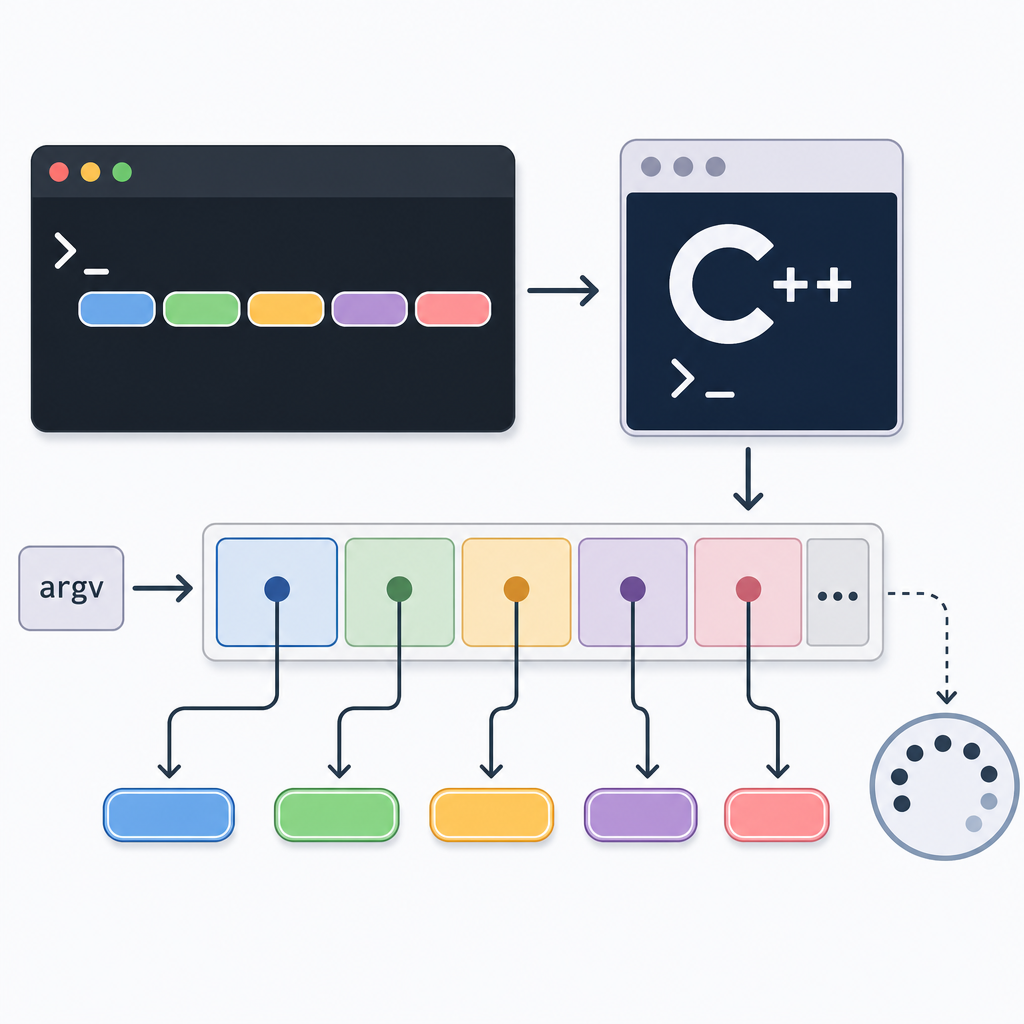
Command-line arguments are values you type after the program name in a terminal. Your program can use them to decide what to do, which file to open, how many times to run, and more. For example, if your program counts words in a file, you might run it like this:
wordcount report.txt
In C++, those extra words (“report.txt”) arrive in your program through the parameters of main. Using command-line arguments makes your programs flexible and easy to test without changing the code. This is why almost every professional C++ application accepts some arguments or options at startup.
The C++ main function parameters: argc and argv
In standard C++, the most common signature is:
#class="cd-package">include <iostream>

int main(int argc, char* argv[]) {
    // use argc and argv here
    return 0;
}- argc is the argument count: how many arguments were passed (including a possible program name at index 0).
- argv is the argument vector: an array of C-style strings (
char*). It hasargcentries, and a finalnullptrterminator atargv[argc]. - argv[0] often contains the program name, but it is not guaranteed to be a full or reliable path. Do not use it to locate files on disk.
On Windows, there are Unicode variants such as wmain(int argc, wchar_t* argv[]) that provide wide-character arguments. For beginners, stick to the standard form above unless you specifically need Unicode handling on Windows.
main(int argc, char* argv[])receives all arguments as text; index 0 is usually the program name.- Always check
argcbefore readingargv[i]to avoid out-of-bounds access. - Arguments with spaces must be quoted in the terminal, for example
"John Doe". - Convert strings to numbers with
std::istringstream,std::stoi/std::stof, orstd::from_chars; handle errors. - Return
0on success and a non-zero exit code on invalid input or failures. - Don’t rely on
argv[0]for file paths; pass needed paths explicitly.
Minimal program to see the arguments
This small program prints the count and every argument it received.
#class="cd-package">include <iostream>

int main(int argc, char* argv[]) {
    std::cout << "Argument count: " << argc << 'n';
    for (int i = 0; i < argc; ++i) {
        std::cout << i << ": " << argv[i] << 'n';
    }
    return 0;
}Argument count: 3
0: myprogram
1: hello
2: C++How to pass and read command line arguments in C++ (step by step)
Here is how you can run a C++ program with arguments on common setups:
- macOS/Linux (Terminal): Compile with g++ or clang++. Then run your program by typing the executable name followed by arguments, for example: ./app one two three.
- Windows (Command Prompt/PowerShell): Compile with your compiler (MinGW g++, clang++, or MSVC tools). Then run: app.exe one two three.
- Visual Studio Code: You can run from the built-in terminal as above. Or, for debugging with arguments, edit your launch configuration and add an args array with your argument strings.
Once your program receives the arguments in argv, you can loop over them and use them to control behavior, read numbers, or open files.
./app "John Doe" 3argc and argv (array of C strings)main(int argc, char* argv[]) receives themargc, show usage/defaults0 = success, non‑zero = errorSimple C++ program using argc and argv: sum numbers
Let’s write a simple program that sums any numbers you pass on the command line.
#class="cd-package">include <iostream>
#class="cd-package">include <sstream>

int main(int argc, char* argv[]) {
    if (argc < 2) {
        std::cout << "Usage: "
                  << (argc > 0 ? argv[0] : "sum")
                  << " <number1> <number2> ...n";
        return 0;
    }

    long long sum = 0;
    for (int i = 1; i < argc; ++i) {
        std::istringstream in(argv[i]);
        long long value{};
        if (!(in >> value)) {
            std::cerr << "Not a valid integer: " << argv[i] << 'n';
            return 1;
        }
        sum += value;
    }
    std::cout << "Sum = " << sum << 'n';
    return 0;
}Sum = 37C++ command line arguments with spaces and quotes
Arguments are separated by spaces. To pass one argument that contains spaces, wrap it in quotes. For example, entering a name like “John Doe” will be delivered as a single argv string. Here’s what the print-args program from earlier might show when run with a quoted argument:
Argument count: 3
0: myprogram
1: John Doe
2: 42
Both Windows and POSIX shells treat quoted text as one argument, but quoting/escaping rules differ across platforms. If you see unexpected splitting, double-check your quotes in the terminal you use.
Handling optional or missing command line arguments in C++
Beginners often want a program that works even if some arguments are missing. The pattern is: check argc, set defaults, and only read indices that exist.
#class="cd-package">include <iostream>
#class="cd-package">include <sstream>
#class="cd-package">include <string>

int main(int argc, char* argv[]) {
    std::string name = "World"; // default
    int times = 1;              // default

    if (argc >= 2) {
        name = argv[1];
    }
    if (argc >= 3) {
        std::istringstream in(argv[2]);
        if (!(in >> times)) {
            std::cerr << "Invalid number: " << argv[2] << 'n';
            return 1;
        }
    }

    for (int i = 0; i < times; ++i) {
        std::cout << "Hello, " << name << "!n";
    }
    return 0;
}
Run it with no arguments, one argument (just a name), or two arguments (name and count). See how defaults work:
Hello, World!Hello, Alice!Hello, Bob!
Hello, Bob!
Hello, Bob!How to convert argv strings to int or float in C++
Every element in argv is a C-style string (text). To use numbers, you must convert. There are a few approaches:
- Using string streams (as shown earlier): easy and portable for beginners, but can be slower for large-scale parsing.
- Using
std::stoi,std::stol,std::stof, etc.: simple, but they throw exceptions on errors. - Using
std::from_chars(C++17): fast, no locale effects, and no exceptions—returns an error code.
| Method | Works with | Pros for beginners | Watch out for | Good when… |
|---|---|---|---|---|
std::istringstream |
ints, floats, multiple values | Readable, no exceptions by default | Slower; must check stream state | Teaching, simple scripts, clarity |
std::stoi/std::stol/std::stof |
single int/float per argument | Very concise | Throws exceptions on bad input | Few numbers; short programs |
std::from_chars (C++17) |
integers and floating‑point | Fast, no allocation, no exceptions | Slightly more verbose; check ec |
Performance, robust error handling |
| Parser library (CLI11, cxxopts, Boost.Program_options) | flags, options, defaults, help | Handles --option, -o, auto‑help |
Extra dependency; learning curve | Real apps with many options |
from_chars is standardized in C++17; ensure your compiler/standard library version supports it.Here’s a tiny example with std::from_chars that doubles an integer argument. If the conversion fails, it prints an error.
#class="cd-package">include <iostream>
#class="cd-package">include <charconv>
#class="cd-package">include <cstring> // for std::strlen

int main(int argc, char* argv[]) {
    if (argc < 2) {
        std::cerr << "Please provide an integer.n";
        return 1;
    }

    int value{};
    const char* s = argv[1];
    const char* e = s + std::strlen(s);

    auto res = std::from_chars(s, e, value);
    if (res.ec != std::errc{}) {
        std::cerr << "Not a valid integer: " << argv[1] << 'n';
        return 1;
    }

    std::cout << "Value * 2 = " << (value * 2) << 'n';
    return 0;
}Value * 2 = 84If you prefer std::stoi for simplicity:
- Wrap calls in
try { ... } catch (const std::exception&) { ... }to catch bad input. - Remember these functions work with
std::string, so you may dostd::stoi(argv[i]).
Common mistakes and cross-platform tips
- Do not assume
argv[0]is a valid or full pathname. It often looks like a program name, but it can be empty or arbitrary. If you need file paths, take them as separate arguments. - Understand quoting rules. POSIX shells (Linux/macOS) and Windows parse quotes and backslashes differently. If you pass an argument with spaces, wrap it in quotes.
- Windows and Unicode. The narrow
argvon Windows may use a system code page, not UTF‑8. For robust Unicode handling on Windows, some programs usewmainor convert from the wide command line API. - Wildcards behave differently. On many POSIX shells, wildcards like
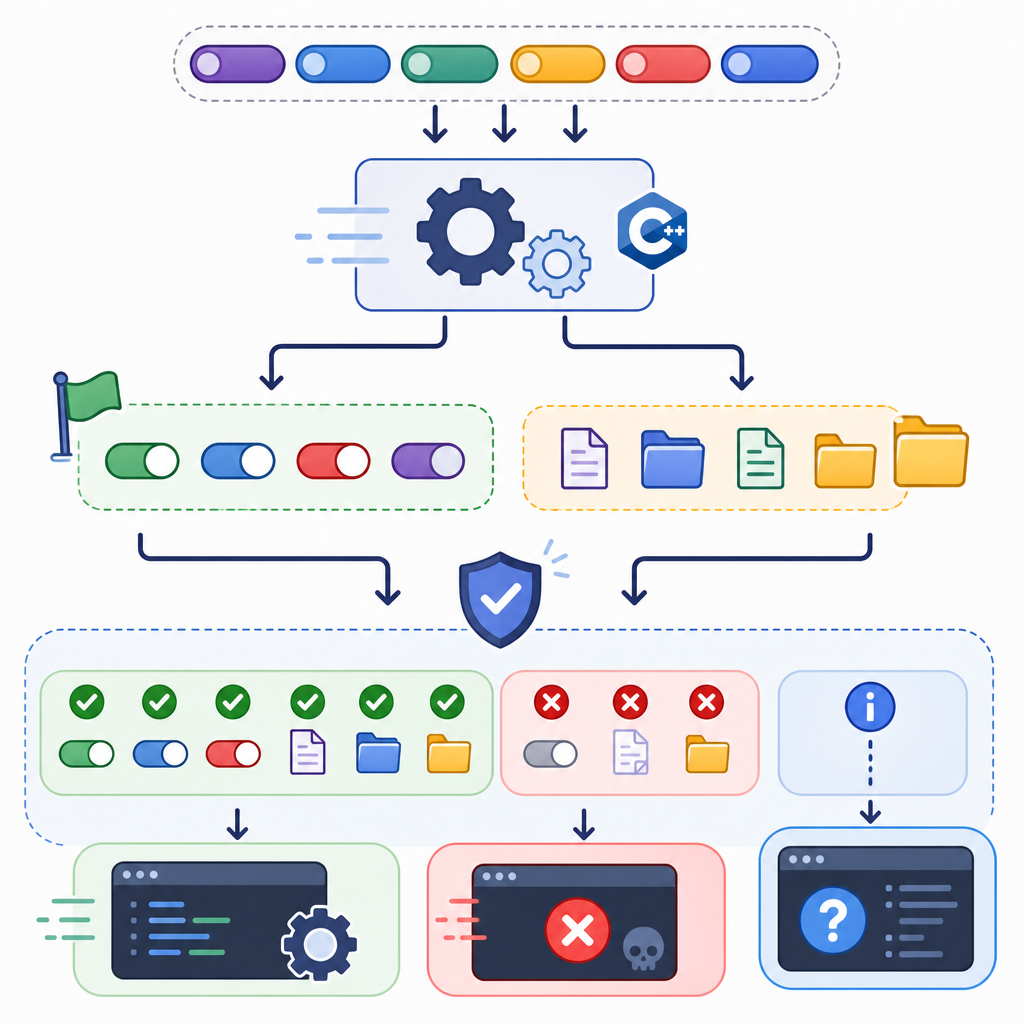
*.txtexpand before your program runs. On Windows, the program typically receives the literal*.txtunless you add special support. - Validate inputs. Always check
argcbefore accessingargv[i], and handle conversion errors so your program doesn’t crash on bad input. - Paths and filenames. If you work with file paths, consider wrapping raw strings with
std::filesystem::path(C++17) to respect each platform’s path rules. - For real apps, use a parser library. Once you need options like
--count 5or-o out.txt, command-line parser libraries (such as CLI11, cxxopts, or Boost.Program_options) make life easier and reduce bugs.
Run a C++ program with command line arguments in VS Code
There are two convenient ways:
- Use the integrated terminal: Build your program, then run it directly with arguments, for example: ./app data.txt 10.
- Use the debugger’s launch configuration: Add or edit a launch profile and include an args list such as ["data.txt", "10"]. Start debugging, and VS Code will pass those arguments every time.
This approach is perfect for a beginner guide to C++ command line usage because it makes testing fast and repeatable.
FAQ: C++ command line arguments explained
What are command line arguments in C++ and why use them?
They are extra values you type after the program name in a terminal. Your program reads them at startup to control behavior (which file to open, how many times to loop, what mode to run in). This avoids hardcoding values and makes your program flexible for testing and automation.
How do I pass and read command line arguments in a C++ program?
Use the main function with int argc, char* argv[]. Everything after the program name appears in argv[1], argv[2], and so on. Check argc to know how many arguments you got, and loop over them if needed.
What do argc and argv mean in simple terms?
- argc: how many argument strings there are (count).
- argv: the list (array) of those strings that your program can read.
How can I handle optional or missing command line arguments in C++?
Give your program reasonable defaults and check argc before accessing argv[i]. For example, if no name is provided, use “World.” If a number is missing, set it to a safe default like 1. Always validate and print a helpful usage message when input is incomplete.
How do I convert argv strings to int or float in C++?
Parse the string. Beginners can use string streams or std::stoi/std::stof (catch exceptions on bad input). For performance and no-exception parsing, use std::from_chars for integers and floating-point (C++17). Always report errors clearly to the user.
Practice ideas
- Build a “repeat” program: first argument is the word, second is how many times to print it.
- Create a “max” program: print the largest integer among the arguments.
- Write a “greet” program: if a name is provided, greet it; otherwise greet “World.”
- Make a “linecount” program: take a file path as an argument and count its lines.
Next steps
Now that you’ve seen C++ command line arguments explained with clear examples, keep learning core C++ topics—strings, loops, functions, files, and the standard library. Continue your journey in our curated tutorials at CodDesire C++.
Sources / Further reading
- cppreference: main function (argc/argv guarantees and notes)
- Microsoft Learn: main function and command-line args (MSVC)
- Microsoft Learn: using wmain (wide-character entry on Windows)
- Microsoft Docs: parsing C command-line arguments (quoting/backslash rules)
- The Open Group POSIX: exec functions (arguments in POSIX)